Add Text to Image Online: Drag, Color, Size and Outline
Type your words, drag them to the exact spot on your picture, and pick a color, a size and an outline. The image downloads at its own pixel size, in your browser, so it never leaves your device. It places one block of text, which is all a caption, a title or a quick note on a photo needs.
How to add text to an image
- Choose an image, or drop it on the box that says Choose an image or drop it here. JPG, PNG and WebP work up to 15 MB, and RAW and HEIC images are converted automatically. You can also paste one from your clipboard.
- The preview opens with Your text here already on it, in white with a dark outline, in the middle of the picture.
- Type your own words in Text, up to 300 characters. Press Enter for a new line. Long lines wrap by themselves to fit the width of the image.
- Drag the text on the preview to move it. Pressing anywhere else on the image makes the text jump there.
- Set Text color and Text size, then press Download image.
To work on a different picture, press the back chevron at the top left (Choose a different image).
Move the text exactly where you want it
Drag the text with a mouse or a finger. When the preview has focus, the arrow keys nudge it by 1% of the image, and Shift with an arrow moves it by 5%. The text always stays inside the image, so it cannot be dragged off the edge. For a caption, drag it to the bottom; for a title, drag it to the top.
Text color, size and outline
- Text color opens a color picker and shows the hex code. It starts at white,
#FFFFFF. - Text size goes from 1% to 25% of the image width and starts at 8%. Because it is a share of the width, the text looks the same on a small image and a large one. On an image 4000 px wide, 8% sets a font size of 320 px.
- Options opens Font (Sans-serif, Serif or Monospace, all fonts already on your device) and the Outline switch.
- Outline is on by default. It is black around light text and white around dark text, so the words stay readable on a busy or mixed background.
The text is always bold. There is no shadow control, no rotation and no logo or sticker upload: this is the plain way to put your own words on a picture.
What gets saved
The download keeps your image's own pixel size, and the line under the preview, Saves at W × H px., tells you what it will be. A PNG downloads as a PNG. A JPG or WebP downloads as a JPG at quality 92. The file is named after the original, so holiday.jpg becomes holiday-text.jpg, and your original is not touched. An image larger than about 16 megapixels is reduced to fit the browser's canvas limit, and the line says so. RAW and HEIC images, including iPhone photos, download as JPG.
On iPhone, Android, Windows and Mac
It works in the browser, so the steps are the same on a phone, a Windows PC or a Mac. There is no app to install and no Word, Paint, Preview or Photoshop involved. Nothing is uploaded and there is no account.
When another tool fits better
For a faint name or copyright line repeated across a whole photo, use Photo Watermarker. For a top and bottom caption in the classic meme style, use Meme Generator. To make the finished file smaller before you send it, try Image Compressor, or Image Cropper to trim the picture first.
Frequently asked questions
How do I add text to an image online?
Choose an image, or drop it on the box that says Choose an image or drop it here. The preview opens with Your text here already on it. Type your own words in Text, drag them where you want them, then press Download image. Nothing is installed, and the image is edited in your browser.
Can I add text to an image without a watermark?
Yes. Capsule Tools adds no watermark, logo or branding to the download. The only thing drawn on your image is the text you typed. There is no account to make and no export limit.
Do I need to sign up to add text to a photo?
No. There is no sign-up, no login and no app. Open it, choose your image, type your text and download the result.
How do I add text to a photo on iPhone or Android?
It runs in the browser on your phone, so there is no app to install. Choose a photo from your library (HEIC photos from an iPhone are converted automatically when they open), type your text and drag it with your finger. Press Download image to save the result.
How do I add text to an image on Windows or Mac?
Open it in any current browser on Windows or macOS and choose the image file. You do not need Word, Paint, Preview or Photoshop. You can also copy an image and press Ctrl+V (Cmd+V on a Mac) on the start screen to paste it in.
Can I add text to a JPG or PNG?
Yes. JPG, PNG and WebP images up to 15 MB work, and RAW and HEIC images are converted automatically. A PNG downloads as a PNG; a JPG or WebP downloads as a JPG at quality 92. The file is named like holiday-text.jpg, and your original file is not changed.
How do I make text readable on a busy picture?
Leave Outline on. It is on by default: Options, then the Outline switch. The outline is black around light text and white around dark text, so the letters stay clear on both bright and dark parts of the picture. Making the text larger with Text size also helps.
Can I add a caption to a photo?
Yes. Type the caption in Text, drag it to the bottom or wherever it reads best, and set a Text size that suits the picture. Long lines wrap by themselves to fit the width of the image, and Enter starts a new line.
Can I put more than one piece of text on an image?
No. This tool places one block of text, which can have several lines. There are no text layers, stickers, drawing tools or per-letter styling, and no rotation. If you need two separate pieces of text, add one, download the image, then open that download again and add the second.
Can I change the font or make the text bold or italic?
Options has a Font choice of Sans-serif, Serif or Monospace. These are fonts already on your device, so nothing is downloaded. The text is always bold, and there is no italic switch.
Does the image keep its original size?
Yes, up to about 16 megapixels. The line under the preview, Saves at W × H px., shows the exact size you will get. A larger image is reduced to fit the browser's canvas limit, and the line then says so.
Is my image uploaded anywhere?
No. The text is drawn on your device in the browser, and the image is never sent to a server.
Recommended
-
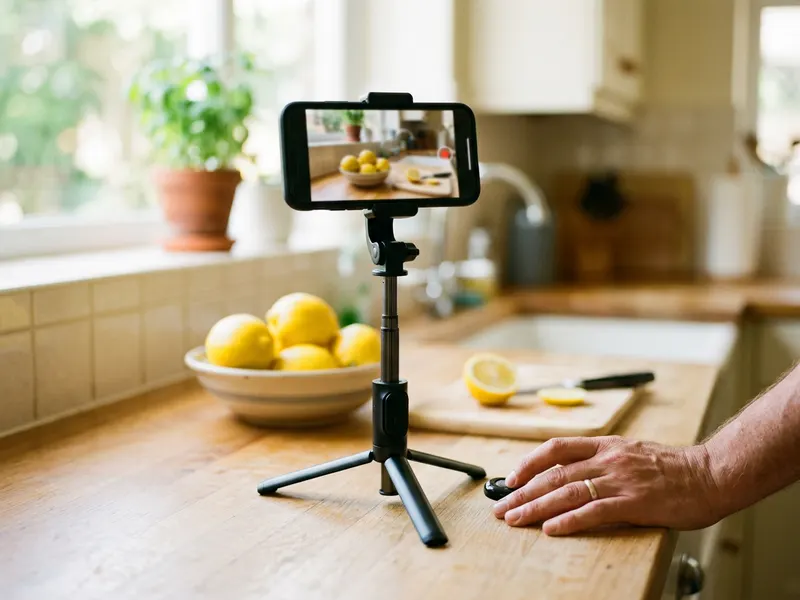 UBeesize Flexible Phone Tripod with Remote
Shoot a steady photo to caption, with the remote doing the tap.
-
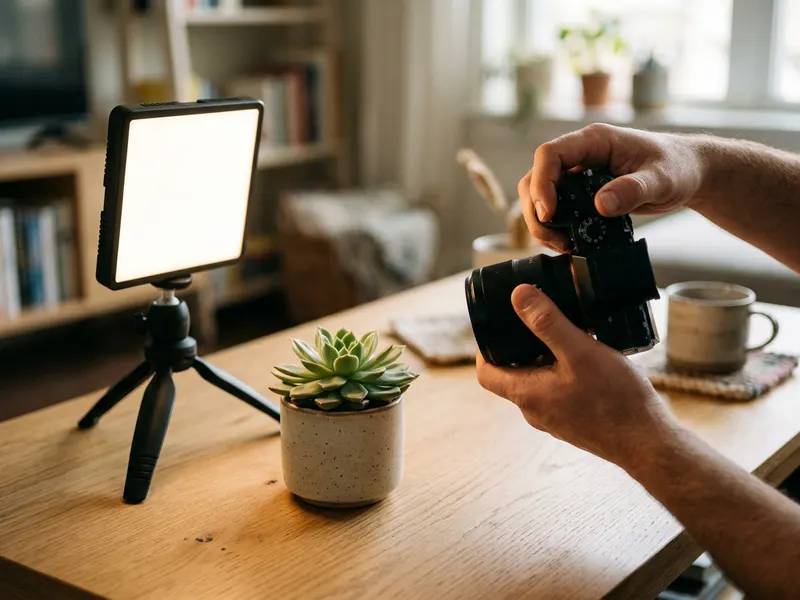 NEEWER 9" LED Panel with Desk Tripod
Light a product or desk shot so the words you add sit on a clean photo.
-
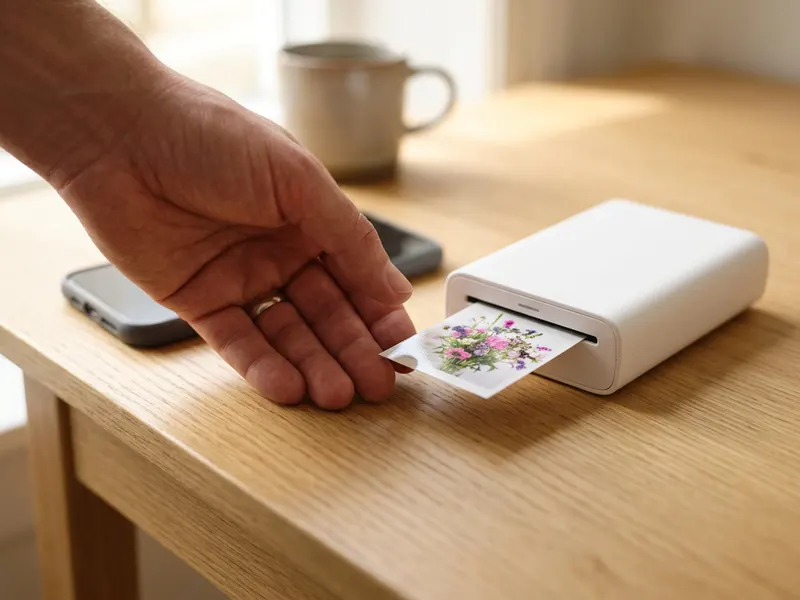 Canon Ivy 2 Mini Photo Printer
Print the captioned photo as a sticker or a card for your shop.
Helps keep the tools free. ✨
Images are for illustration only. As an Amazon Associate I earn from qualifying purchases.


