Rotate Video to Landscape: Fix a Sideways or Vertical Video
Use this tool to rotate a video to landscape when it was filmed upright or plays on its side. It turns a video or a photo 90 degrees left or right, as many times as you need, and shows the result before you save it. It takes MP4, MOV and WebM video and JPG, PNG, WebP and HEIC images. The turning happens in your browser: nothing is uploaded, there is no account and no watermark is added.
How to rotate a video 90 degrees
- Choose a file in Choose a video or image, or drop it here, or drop it onto that area. The tool reads it and opens a preview of the file as it will be saved. For a video, the preview has a play and pause button.
- Look at the line under the preview, such as 360 × 640 · Portrait. It gives the size of the file you will get and whether it is Landscape, Portrait or Square.
- Press Rotate left or Rotate right. The preview turns by 90 degrees each time, and the presses add up: two make 180 degrees, and a press the other way turns it back.
- When the preview is the right way up and wide, press Save landscape file.
- A video shows its progress on the button, for example Saving 46%, and the download starts by itself when it is done. A photo is saved at once. Afterwards the button reads Save again, so you can turn the file further and save another copy.
- The back arrow, named Start over, returns to the start screen to choose a different file.
After Rotate right: 1920 × 1080 · Landscape
Saved as: holiday-landscape.mp4
Rotate or blur padding: which one to use
Rotating is for a file that is on its side: a clip filmed with the phone turned the wrong way, or a photo that opens sideways. The picture itself is turned, and nothing is cropped.
Blur padding instead of rotating is for a video or photo that is correctly upright but narrow, when you want a wide result without turning it. The hint under the toggle describes it: it keeps the picture upright and sets it in a 16:9 frame with blurred sides. Rotation is off while it is on, so Rotate left and Rotate right are disabled. Switch the toggle off to rotate again.
| Source | Rotate right | Blur padding |
|---|---|---|
| 1080 × 1920 video | 1920 × 1080, picture turned | 1920 × 1080, picture upright in the middle |
| 720 × 1280 video | 1280 × 720, picture turned | 1920 × 1080, picture upright in the middle |
| 3024 × 4032 photo | 4032 × 3024, picture turned | 3840 × 2160, picture upright in the middle |
Blur padding caps the frame height at 1080 pixels for video and 2160 pixels for photos, which is why the photo above comes out smaller than rotating it.
Rotate an iPhone or Android video
Phone videos are usually saved with a rotation flag that tells the player how to turn the picture. Some editors, players and websites ignore the flag, which is why a clip can look fine on the phone and sideways somewhere else. The preview here respects the flag, so it matches what the saved file will look like. If the preview is already sideways, press Rotate left or Rotate right until it is upright, then save. The new MP4 holds the turned picture, so it plays the same way everywhere.
Rotate a photo to landscape
The same two buttons work on images. JPG, PNG and WebP photos are saved in their own format as name-landscape.jpg, .png or .webp, with JPG written at quality 92. A HEIC photo from an iPhone or a camera RAW file also opens, and it is saved as a JPG. Images are saved instantly, with no waiting. A side longer than 6000 pixels is scaled down to 6000.
What happens to a video when you save
A video cannot be turned without being written again, so the tool re-encodes it in your browser with FFmpeg and saves it as an MP4 (H.264 video, AAC sound) named name-landscape.mp4. The sound is kept. Because it runs inside the browser on a single thread, it is slower than a desktop video editor: a long or large clip can take minutes, and the percentage on the button shows how far it has got. Keep the tab open until the download starts.
| File | Accepted | Saved as |
|---|---|---|
| Video | MP4, MOV, WebM, up to 500 MB | MP4 (H.264, AAC), name-landscape.mp4 |
| Photo | JPG, PNG, WebP | The same format, name-landscape.jpg / .png / .webp |
| Photo | HEIC, camera RAW | JPG, name-landscape.jpg |
A video over 150 MB shows the note that turning it can take several minutes. A video over 500 MB is refused with a message, so try a smaller one.
What this tool does not do
- It turns in steps of 90 degrees only. There is no free-angle rotation.
- It does not crop, flip or trim. A video can be shortened in the video trimmer, and a photo can be mirrored in the flip image tool.
- A rotated video is a new encode, not a lossless copy. If you only need a smaller file, the video compressor does that.
- It does not rotate PDF pages. The rotate PDF tool does.
Frequently asked questions
How do I rotate a video 90 degrees online?
Choose the video, check the preview, then press Rotate left or Rotate right for each quarter turn. Each press adds 90 degrees, so two presses make 180. Press Save landscape file and the turned video downloads as an MP4. There is no sign-up and no watermark, and the file is processed in your browser instead of being uploaded.
How do I turn a vertical video into a horizontal one?
There are two ways. Rotating turns the picture itself, so a 1080 × 1920 portrait clip becomes 1920 × 1080 landscape; use it when the video was filmed sideways. If the video really is vertical and you want it to sit in a wide frame, turn on Blur padding instead of rotating. It keeps the picture upright and places it in a 16:9 frame with blurred sides, with no cropping.
Why is my video sideways?
Phones usually record the picture in one fixed direction and add a rotation flag to the file, which tells players how to turn it. Some players, editors and websites ignore that flag, so the video shows up sideways. The preview here respects the flag and shows the file as it will be saved. If it still looks sideways, press Rotate left or Rotate right until it is upright, then save a new MP4.
How do I rotate an iPhone video from portrait to landscape?
Choose the video from your iPhone, then press Rotate left or Rotate right until the preview is wide. A portrait iPhone clip, for example 1080 × 1920, turns into 1920 × 1080 and the line under the preview changes from Portrait to Landscape. Save landscape file downloads it as an MP4 with the sound kept.
Can I rotate a video without losing quality?
Not completely. A video has to be re-encoded to be turned, so the saved file is a new H.264 MP4 and is not a bit-for-bit copy of the original. At normal viewing sizes the change is small, and nothing is cropped when you rotate. Photos are different: JPG, PNG and WebP images are saved in their own format right away, with JPG written at quality 92.
Can I rotate an MP4 or MOV video?
Yes. MP4, MOV and WebM videos are accepted, up to 500 MB. Whichever one you choose, the result is saved as an MP4 named after your file with -landscape added, for example holiday-landscape.mp4. If a video is over 150 MB, a note warns that turning it can take several minutes in the browser.
How do I rotate a photo to landscape?
Choose the JPG, PNG or WebP image, press Rotate left or Rotate right until it is wide, then press Save landscape file. HEIC photos and camera RAW files also open, and they are saved as JPG. The file downloads immediately and keeps its name with -landscape added, for example beach-landscape.jpg. Photos with a side longer than 6000 pixels are scaled down to 6000.
How do I rotate a video online without a watermark?
Nothing is added to the video. There is no watermark, no logo and no sign-up step, and the saved file is just your video turned the way you chose. The work is done by FFmpeg running in your browser, so the video is never uploaded.
How do I add a blurred background to a vertical video?
Press Blur padding instead of rotating. The picture stays upright and is centred in a 16:9 frame, and a blurred, enlarged copy of the same picture fills the sides. Rotate left and Rotate right switch off while it is on. Videos in this mode are saved at up to 1080 pixels tall and photos at up to 2160, so a 1080 × 1920 video becomes a 1920 × 1080 frame.
Recommended
-
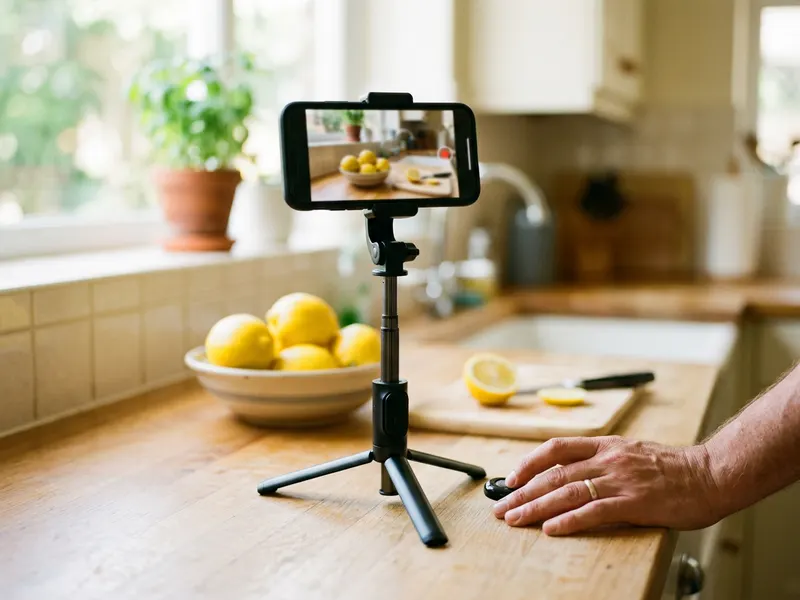 Phone Tripod with Bluetooth Remote
Prop your phone up sideways and film wide next time, so there is nothing to rotate.
-
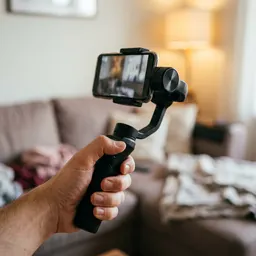 DJI Osmo Mobile 8 Phone Gimbal
A gimbal keeps the phone steady and lets you switch to landscape in a tap.
-
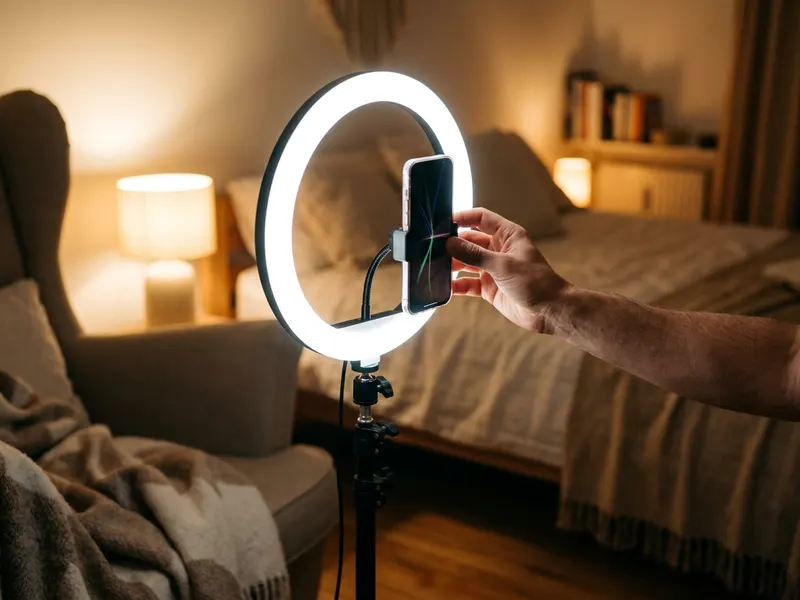 UBeesize 12" Ring Light with Tripod
Even light makes the clip you just straightened look sharp on a TV or in a post.
Helps keep the tools free. ✨
Images are for illustration only. As an Amazon Associate I earn from qualifying purchases.


