Fake Terminal Generator: Custom Commands as an HTML, CSS and JS Snippet
This fake terminal generator turns a list of commands and replies into one block of HTML, CSS and JavaScript. Paste the block into a website and visitors get a working command line with a blinking cursor: they type a command, press Enter, and your reply appears. The code has no libraries and makes no network requests, and your commands are turned into the snippet in your browser, so nothing is uploaded.
How to Make a Fake Terminal for Your Website
- In Commands and replies, write one command per line in the form
command = reply. The field shows a few grey examples until you start typing. - Open Appearance & Config if you want a different Prompt or Theme. You can also change them on the next screen.
- Press Generate Terminal. The button stays disabled until at least one line is valid.
- Click the Live preview and type one of your commands to try it.
- Press Copy Code. The button reads Copied for a moment, and the full snippet from HTML, CSS and JavaScript is on your clipboard.
- Paste it into your page where the terminal should appear. The back arrow in the top bar returns to the commands if you want to edit them.
Command and Reply Format
Each line is split at the first = or :, whichever comes first. Everything before it is
the command, everything after it is the reply, so a reply can contain more equals signs and colons. A command
itself cannot. Lines that do not fit the form are left out, and a warning counts them, for example
2 lines are not in the form command = reply and will be left out.
| Line you write | Command | Reply printed |
|---|---|---|
whoami = guest | whoami | guest |
time: 10:30 | time | 10:30 |
git status = On branch main | git status | On branch main |
about = Hi, I build websites.\nCome say hello. | about | Two lines: Hi, I build websites. then Come say hello. |
- Multi-word commands work. Spaces are collapsed and trimmed before comparing, and the match is case-sensitive.
- Line breaks: write
\ninside a reply. Write\\for one backslash. - Repeated command: the last reply wins.
- Empty reply: allowed, the command then prints nothing.
- Unknown command: the terminal prints <command>: command not found.
Prompt and Theme
Prompt is the text shown before the cursor. It starts as user@web:~$, and a space is
added after it if you leave one out. Try something like admin@server:~$. Theme has three
choices:
- Matrix: green text on black, the default.
- Dark: light grey text on dark grey.
- Light: near-black text on white.
On the snippet screen the same panel is already open, and a change updates both the preview and the code at once.
What the Generated Terminal Does
The snippet is one block: a <style>, a <div id="tsg-terminal"> and a
<script>. The terminal is 240 pixels tall, set in a monospace font, with a blinking block cursor.
Clicking or tapping it focuses a hidden text input, so the on-screen keyboard opens on a phone. On Enter it prints
the prompt and what was typed, then the reply, and scrolls down to the newest line.
Replies are printed as plain text, so HTML in a reply is shown as typed and never runs. It is also a scripted
terminal, not a shell. It has no up-arrow history, no tab completion, no built-in help or
clear (add a help line yourself) and only one terminal fits on a page.
Where to Paste the Snippet
Paste it into the body of any HTML page: a static site, a GitHub Pages repository, a portfolio, a blog post or a landing page. In a CMS or site builder, use a custom HTML or embed block. Typical uses are a terminal-style portfolio that answers about, projects and contact, a puzzle or alternate reality game where players hunt for the right command, and a tutorial or demo that needs a convincing command line without a real one.
The rest of the page is up to you. To write the title and share tags for the page that holds the terminal, use the Meta Tag Generator, to match a button style around it try the CSS Button Generator, and to tidy the pasted code, run it through the Code Formatter.
Every reply is written into the snippet, so anyone can read it by viewing the page source. Keep passwords, keys and private details out of your replies.
Frequently asked questions
How do I make a fake terminal for my website?
Write one command and reply per line in Commands and replies, for example whoami = guest, then press Generate Terminal. Press Copy Code on the next screen and paste the block into your page. It is plain HTML, CSS and JavaScript, so it needs no library, build step or install.
How do I make a terminal style website?
Make the terminal the main part of the page. Paste the snippet into an otherwise empty page, pick the Matrix, Dark or Light theme to match the rest of your colours, and add commands such as about, projects and contact so visitors can look around by typing. The generator makes the terminal block only, so any other page styling is yours to add.
Can I add a fake command line to a portfolio website?
Yes. The snippet is one self-contained block, so it can sit inside any section of a portfolio, a landing page or a blog post. A common set of commands is help, about, projects, skills and contact, with help listing the others, because the tool does not add a help command for you.
Where do I paste the snippet, for example on GitHub Pages or a CMS?
Anywhere that accepts HTML. On GitHub Pages or any static site, paste it into the body of an .html file. In a CMS or site builder, use a custom HTML or embed block. The snippet has no dependencies and makes no network requests, so there is nothing else to upload or link.
How do I add a command with a space in it, like git status?
Just type it before the equals sign: git status = On branch main. Extra spaces are collapsed and the ends are trimmed, so git status typed by a visitor still matches. Commands are case-sensitive, so Git Status is a different command from git status.
Can a reply contain an equals sign or a colon?
Yes. Each line is split at the first equals sign or colon, whichever comes first, so everything after it belongs to the reply. time = 10:30 gives the command time and the reply 10:30. A command itself cannot contain an equals sign or a colon.
How do I print more than one line in a reply?
Write \n where you want a line break, for example about = Hi, I build websites.\nCome say hello. Write two backslashes to print one backslash. A reply can also be empty, in which case the command prints nothing.
What happens when someone types a command I did not add?
The terminal prints the command followed by command not found, for example sudo: command not found. If you list the same command twice, the last reply wins. There are no built-in commands such as help or clear, so add the ones you want.
Can I put HTML, links or images in a reply?
No. Replies are printed as plain text, so HTML in a reply is shown literally and never runs. That keeps the snippet safe to embed, but it also means a reply cannot hold a clickable link.
Does the fake terminal work on a phone?
Yes. Tapping or clicking the terminal focuses a hidden text input, which brings up the on-screen keyboard on a phone or tablet. Pressing Enter sends the line, and the terminal scrolls to the newest output by itself.
Does it support arrow-key history, tab completion or a real shell?
No. It answers only the commands you list, and it has no up-arrow history, tab completion or built-in clear. It is a scripted terminal for display and play, not a way to run anything on a server.
Can I put two terminals on one page?
Not with this snippet. It uses one fixed element id, tsg-terminal, so a second copy on the same page would clash with the first. For several terminals, put each one on its own page.
Is my text sent anywhere?
No. The snippet is built in your browser as you type, and the live preview runs in a sandboxed frame on the same page. Nothing is uploaded, and the snippet you copy makes no network requests either.
Recommended
-
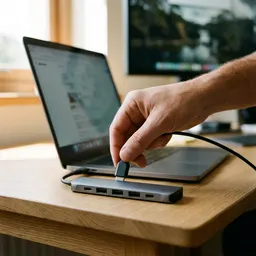 Anker 7-in-1 USB-C Hub
One hub for your laptop, a second screen and a card reader while you test your terminal page.
-
 Govee Smart Light Bars
Wash the wall behind your screen in matrix green or amber while you build your hacker-style page.
-
 Elgato Stream Deck Neo (8 keys)
Put your preview and deploy commands on one key and stop retyping them as you tweak your terminal.
Helps keep the tools free. ✨
Images are for illustration only. As an Amazon Associate I earn from qualifying purchases.


