Resize Screenshot for Instagram, X and App Store Sizes
Resize a screenshot for Instagram, X, LinkedIn, Pinterest, YouTube or the App Store without cropping or stretching it. The whole screenshot is scaled to fit inside the size you choose and centered, and the space left over is filled with a blurred copy of the screenshot or a solid color. You get a PNG at exactly that pixel size, and the preview shows exactly what you will download.
How to resize a screenshot for Instagram without cropping
- Choose your screenshot. Select Choose a screenshot or drop it here, drop a file on it, or paste one from your clipboard with Ctrl/Cmd + V. It accepts PNG, JPG, WebP and HEIC up to 15 MB.
- Under Size, select a preset. Instagram portrait (1080 × 1350) is selected to start with, and the preview label shows the preset name and its pixel size.
- Under Background, choose Blur or Color for the space around the screenshot.
- Select Download PNG. The file is named after your screenshot plus the size, for example
my-screenshot-1080x1350.png. The button then reads Download again, so you can change the size or background and save another version.
Select Start over (the back arrow in the app bar) to pick a different screenshot. Everything happens in your browser, so nothing is uploaded.
How the fit works: nothing is cropped or stretched
The screenshot keeps its own proportions. It is scaled until the whole image fits inside the target size, then centered. A screenshot smaller than the target is scaled up to fit, and one with the same proportions as the target fills it completely with no leftover space.
For example, a 1170 × 2532 phone screenshot placed in Instagram portrait (1080 × 1350) is scaled to about 624 × 1350 pixels. That leaves roughly 228 pixels on the left and on the right, and those two strips are what the background fills. In Instagram story (1080 × 1920) the same screenshot comes out about 887 × 1920, so the strips are narrower.
Social post and app store screenshot sizes
These are the presets under Size, in the order they appear. The row scrolls sideways when the screen is narrow.
| Preset | Pixels |
|---|---|
| Instagram square | 1080 × 1080 |
| Instagram portrait | 1080 × 1350 |
| Instagram story | 1080 × 1920 |
| X post | 1600 × 900 |
| Facebook post | 1200 × 630 |
| LinkedIn post | 1200 × 627 |
| Pinterest pin | 1000 × 1500 |
| YouTube thumbnail | 1280 × 720 |
| App Store 6.5″ | 1284 × 2778 |
| App Store 6.9″ | 1320 × 2868 |
| Google Play phone | 1080 × 1920 |
| iPad 12.9″ | 2048 × 2732 |
The tool states sizes as pixel numbers only. Platforms change what they accept, so check the current guidance from Instagram, X, App Store Connect or Google Play Console before you upload.
Resize a screenshot for the App Store or Google Play
For store listing images, select App Store 6.5″ (1284 × 2778), App Store 6.9″ (1320 × 2868), iPad 12.9″ (2048 × 2732) or Google Play phone (1080 × 1920). A screenshot taken on a device with the same proportions fills the image exactly. A screenshot with different proportions gets bars on the sides or top and bottom, filled with the background you chose. If you want a device frame and a caption around your screenshots, use App Screenshot Framer.
Blur or color background
Blur fills the space with the same screenshot, scaled to cover the whole image, blurred and dimmed with a 20% black layer so the sharp screenshot stands out on top. The blur radius is 20 pixels in the downloaded image. Color fills it with one solid color. Choose a swatch under Fill color, use the color picker, or type a hex code in the hex field.
Custom size
Select Custom size to open the panel, then type a Width and a Height, each from 100 to 4000 pixels. The preview updates as soon as a number is between 100 and 4000, and the download uses exactly those numbers. Select Custom size again to close it. A source image larger than 4000 pixels on its longest side is shrunk first, which does not change the result because no output can be bigger than 4000 pixels.
What this tool does not do
It fits and pads; it does not change what is inside the screenshot. For other jobs:
- Cut a screenshot down to a ratio: Image Cropper
- Resize many images in one go: Batch Image Resizer
- Make a PNG smaller in file size: Image Compressor
- Change the file format: Image Converter
Frequently asked questions
How do I post a screenshot on Instagram without cropping it?
A phone screenshot is much taller than a feed post, so anything that forces it into a post shape crops or squeezes it. Choose your screenshot, select Instagram portrait (1080 × 1350) or Instagram square (1080 × 1080) under Size, and select Download PNG. The whole screenshot is scaled to fit inside that size and centered, and the leftover space is filled with Blur or a Color you choose.
What size should I resize a screenshot to for Instagram?
The presets cover Instagram square (1080 × 1080), Instagram portrait (1080 × 1350, selected by default) and Instagram story (1080 × 1920). The tool gives sizes as pixel numbers only and does not claim to know what Instagram currently requires, so check Instagram's own guidance if you need to be sure.
How do I resize a screenshot for the App Store?
Under Size, select App Store 6.5″ (1284 × 2778), App Store 6.9″ (1320 × 2868) or iPad 12.9″ (2048 × 2732), then select Download PNG. If your screenshot already has the same proportions as the size you picked, it fills the image with no bars. Which sizes a listing needs changes over time, so confirm the current list in App Store Connect before you upload.
How do I resize a screenshot to a square?
Select Instagram square (1080 × 1080) under Size. For another square size, open Custom size and enter the same number in Width and Height, anywhere from 100 to 4000 pixels. The screenshot is fitted inside the square without cropping, and the sides that are left over are filled with Blur or Color.
Can I resize a screenshot to an exact size like 1080×1350?
Yes. Open Custom size and type the pixel size in Width and Height, each from 100 to 4000. The preview updates as you type, and the downloaded PNG has exactly those dimensions. 1080 × 1350 is also the Instagram portrait preset, so you can select it without typing.
Is my screenshot uploaded when I resize it?
No. The screenshot is resized in your browser on an HTML canvas and the PNG is created on your device. Nothing is sent to a server, so your screenshot stays on your device.
Recommended
-
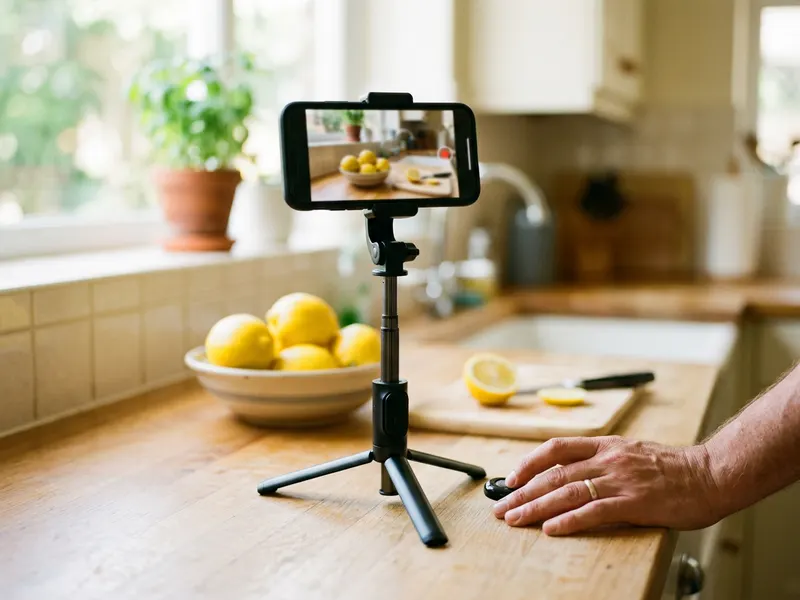 Phone Tripod with Bluetooth Remote
Prop your phone up for steady reels and story clips to go with the post.
-
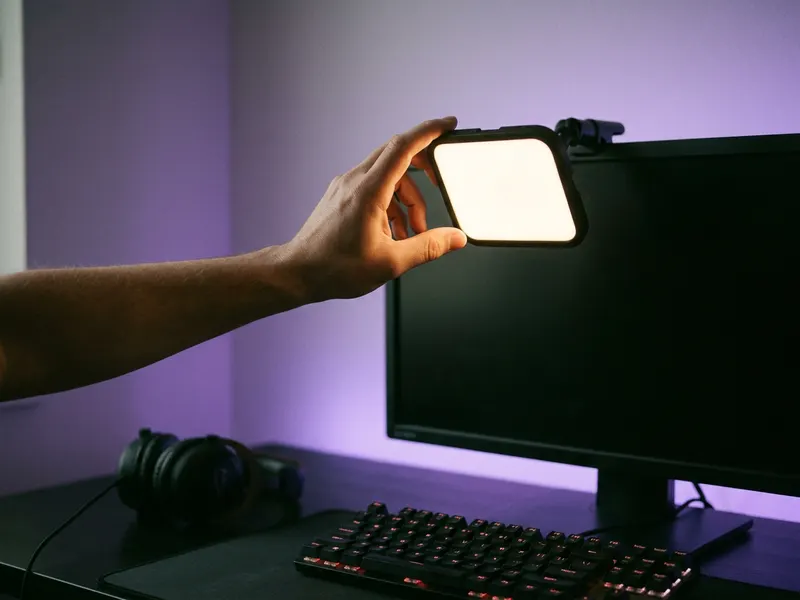 Logitech Litra Glow Streaming Light
Soft, even light for filming the video that sits next to your fitted screenshot.
-
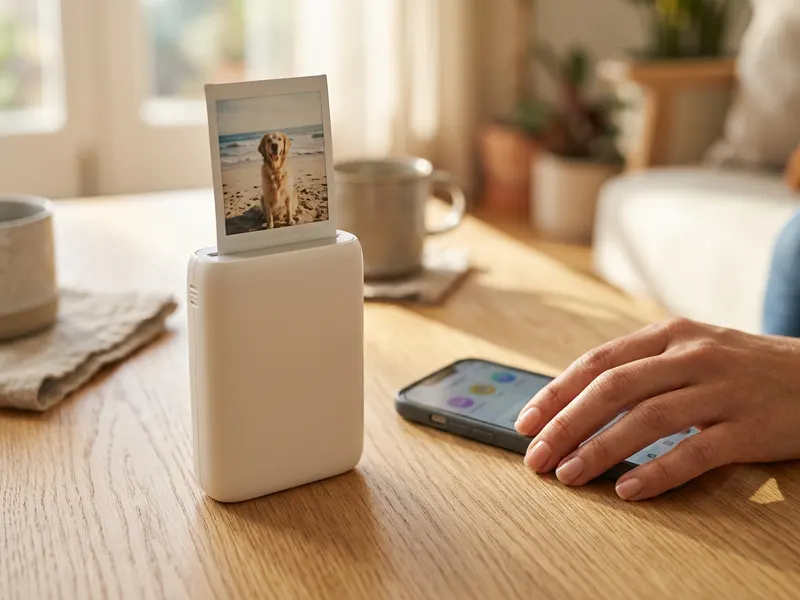 Fujifilm Instax Mini Link 3 Phone Printer
Print the screenshot you just fitted as a small instant photo.
Helps keep the tools free. ✨
Images are for illustration only. As an Amazon Associate I earn from qualifying purchases.


