Crop and Resize Image Online
Image Prep does the three jobs that usually take three tools: crop to a ratio, resize to exact pixels and compress the file with a quality slider. Do it for one image or a whole batch, watch the finished file size update live, and download the result. Your images are processed in your browser and never uploaded.
How to crop, resize and compress an image
- Add your images: select, drag them in or paste. JPG, PNG, WebP, GIF and BMP work, and RAW or HEIC photos are converted when you add them.
- Drag the crop box or its four corner handles, or pick a ratio chip. The rule-of-thirds guides help you line up the shot.
- Type a width and height under Size.
- Drag the Quality slider until the Estimated size is small enough.
- Switch from Crop to Preview to see the exact finished image, then press Download.
A single image is saved as name-prepared.webp (or .jpg). Each image can be up to
20 MB; RAW and HEIC photos are not held to that limit.
Crop to a ratio or any shape
The ratio chips set the crop shape: Free, Original, 1:1, 4:3, 3:2, 16:9, 4:5 and 9:16. Choosing a ratio places the largest box of that shape in the centre of the picture, and you can then drag it wherever you want. Free keeps whatever shape you draw, and Original keeps the picture's own proportions. Use 1:1 for a square avatar, 16:9 for a banner or video thumbnail and 9:16 for a phone story.
Resize an image to exact pixels
Under Size there is a width field, a lock and a height field, in px, each from 1 to 8192. With Lock aspect ratio on, which is the default, changing one number sets the other to match the shape of your crop, so the picture is never squashed. Turn the lock off to enter any width and any height; the image is then stretched to fit, so crop to the right shape first if you need exact dimensions without distortion.
Compress the file with the Quality slider
Quality runs from 1 to 100% and starts at 80%, between Smaller file and Best quality. The Estimated size card re-measures the real output as you move the slider and shows the original size ("was ...") and how much smaller the new file is. Fewer pixels and lower quality both shrink the file, so for a tight limit reduce the Size first and then fine-tune with the slider. The Preview toggle shows exactly what the finished file will look like.
Crop and resize many images at once
Press the + button on the thumbnail strip to add more images. Select a thumbnail to edit that image and use the x to remove one when you have two or more. Each image keeps its own crop, while Quality and Output format apply to the whole set. To give every image the same shape and pixel size, open Advanced and press Apply crop and size to all images.
With one image the button reads Download. With two or more it becomes
Download all N images and saves a single prepared-images.zip.
WebP or JPEG output
Under Advanced, Output format is WebP by default, which is usually smaller than JPEG at the same quality and keeps transparent areas. Choose JPEG when the place you are uploading to does not accept WebP; transparent areas become white. If your browser cannot create WebP files, Image Prep switches to JPEG automatically. It does not output PNG.
Need only one of these jobs? Try the dedicated image cropper, the image compressor or the batch image resizer, or change formats with the image converter. For camera RAW and HEIC files see Photo to Web.
Image Prep FAQ
How do I crop and resize an image online?
Add your image, drag the corners of the crop box (or pick a ratio chip such as 1:1 or 16:9), then type the finished width and height under Size. Turn on the Preview toggle to see the exact result, then press Download. Everything happens in your browser, so the image is never sent anywhere.
How do I crop multiple images to the same size?
Add all the images with the + button, set the crop ratio and the Size for one of them, then open Advanced and press Apply crop and size to all images. Every image gets the same crop ratio and output size. You can still select a thumbnail to adjust one crop by hand, and Download all downloads a single ZIP.
Does cropping an image reduce file size?
Usually yes, because cutting away part of the picture leaves fewer pixels to store. The bigger savings come from a smaller pixel size and a lower Quality setting, and the Estimated size card shows the new file size and the percent smaller as you change them.
How do I resize an image to exact dimensions?
Type the width and the height you need in the Size fields, each from 1 to 8192 px. With the lock on, the second number follows the crop shape automatically. To hit a width and height that do not match the crop shape, turn the lock off; the image is then stretched to fit, so crop to the right ratio first if you want to avoid distortion.
How do I crop and compress an image to 50KB?
There is no target-size box, but the Estimated size card updates live. Crop the image, set a smaller width and height, then drag the Quality slider toward Smaller file until the estimate reads under 50 KB. Check the Preview toggle to make sure it still looks acceptable before you download.
Can I resize an image without uploading it?
Yes. Image Prep crops, resizes and compresses entirely inside your browser, so nothing is uploaded. That also makes it a quick way to shrink a photo before you attach it to a form or an email.
How do I prepare images for a website?
Crop each image to the shape your layout needs, set a width that matches the space it fills (often 1200 to 1600 px for a full-width photo), keep Output format on WebP and lower Quality until the Estimated size is small but the Preview still looks clean. Add several images to prepare a whole set and download them in one ZIP.
Recommended
-
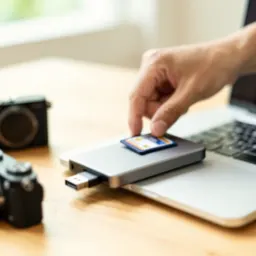 Anker USB-C SD Card Reader
Move a whole card of photos onto your laptop, ready to crop and resize.
-
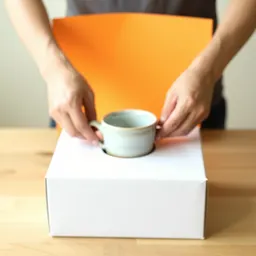 Neewer Foldable Photo Light Box
Shoot product photos with even light, so there is less to fix before you upload.
-
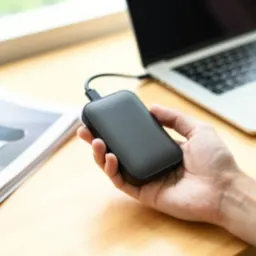 SanDisk 1TB Portable SSD
Keep the originals and the upload-ready folders in one safe, fast place.
Helps keep the tools free. ✨
Images are for illustration only. As an Amazon Associate I earn from qualifying purchases.


