Audio to Waveform Video: Make an Audio Visualizer Video Online
This audio to waveform video maker turns an MP3, WAV, OGG or M4A file into an animated video: the waveform moves with the music and your original audio plays underneath. Pick Bars, Line or Circle, choose your colors, then choose Create video and download a WebM file (an MP4 in Safari). Everything happens in your browser, the audio is never uploaded, and there is no watermark, no account and no sign-up.
How to turn an audio file into a waveform video
- Select the drop area, labelled Choose an audio file or drop it here, and pick a file, or drag one in. MP3, WAV, OGG and M4A work everywhere, and AAC, FLAC and Opus work where your browser can play them. The limit is 50 MB.
- Wait for Reading audio… to finish. The waveform preview appears with the track length shown as m:ss.
- Press the play button (named Play preview, and Pause preview while it plays) to hear the track and watch the waveform react. The progress bar and the clock show where you are.
- Under Style, select Bars, Line or Circle. Open Appearance to set the colors, Thickness and Resolution. The preview redraws as you change each one.
- Choose Create video. Style and Appearance are locked in once recording starts, so settle them first.
- Keep the tab open and in front until Creating your video… reaches 100%. Choose Cancel to stop and go back to the preview.
- Watch the result in the player, then choose Download video.
The file is saved as <original name>-waveform.webm, or .mp4 in Safari. After the
video is ready, Change appearance returns to the preview so you can try another style or color, and
Choose another file starts again with a different track. Creating a second version records the whole track again.
Bars, Line or Circle: which waveform style to use
An audio visualizer video can be drawn three ways. Bars and Circle react to the frequency spectrum (bass, mids and treble each move their own part of the picture), while Line draws the actual waveform of the audio as it plays.
| Style | What it draws | Good for |
|---|---|---|
| Bars | A row of vertical bars that rise and fall with the frequency spectrum. | Music previews and the classic equalizer look. |
| Line | A single line that traces the real waveform of the sound. | Podcast and voice clips, where a calm trace reads best. |
| Circle | Bars arranged in a ring that react to the frequency spectrum. | Square videos and album-style posts. |
Colors, thickness and video size
Open Appearance to change how the video looks. It starts with Bars, a waveform color of
#5b8bff on a background color of #0f1115, a thickness of 5 and the landscape size.
- Waveform color and Background color: pick a color with the swatch, or type a hex code such as
#5b8bffinto the text box. - Thickness: a slider from 1 to 10 that sets how heavy the bars or line are. The label shows the current value.
- Resolution: Square 1080×1080 or Landscape 1920×1080. Landscape suits YouTube and desktop players. Square suits feed posts.
Why recording takes as long as the track
The video is recorded in real time with your browser's own recorder: the track plays through once, silently (nothing comes out of your speakers), while the waveform is drawn and captured at 30 frames per second. A 4-minute song therefore takes 4 minutes, and a 30-second clip takes 30 seconds. The progress screen shows the percentage and the time elapsed out of the total.
The tab has to stay open and in front. If you switch to another tab or window, the recording pauses with the message Paused while this tab is hidden and carries on when you come back, so nothing is lost. For a long track, start it and leave the tab visible.
WebM, MP4 and where the video plays
In Chrome, Edge and Firefox the video is a WebM file with VP9 video and Opus audio. Safari cannot write WebM, so it saves an MP4 instead. WebM plays in current browsers and is accepted by YouTube. Some apps and many Mac editors prefer MP4. If a site or editor will not take the WebM, run it through a video converter to get an MP4. Use the square size for a feed post and the landscape size for YouTube, a website or a podcast clip.
What this audio visualizer video maker does not do
It makes one thing: a waveform video from the whole track. There is no trim or timeline scrubbing, so cut the audio first if you only want a section. There is no intro, no title or caption text, no cover image or album art, and no vertical 9:16 size, only square and landscape. If you need those, bring the downloaded video into a video editor and add them there.
Frequently asked questions
How do I turn an audio file into a waveform video?
Choose an MP3, WAV, OGG or M4A file, pick Bars, Line or Circle, set your colors, then choose Create video. The tool plays the track once while it records the animated waveform together with the audio, and then Download video saves it. The recording runs in real time, so it takes as long as the track.
Is there a waveform video generator with no watermark?
Yes. This one adds no watermark, needs no account and has no sign-up. The video contains only your waveform on your background color, plus your audio.
Is my audio uploaded anywhere?
No. The file is read, drawn and recorded inside your browser, and nothing is sent to a server.
Why does making the video take as long as the song?
The video is recorded in real time with your browser's own recorder. The track plays once, silently, while it is captured, so a 4-minute song takes about 4 minutes. Keep the tab open and in front, because the recording pauses while the tab is hidden and resumes when you return.
Can you upload a WebM to YouTube?
Yes, YouTube accepts WebM, so the file from Chrome, Edge or Firefox can be uploaded as it is. Choose the Landscape 1920×1080 size for YouTube. If you use Safari, the file is an MP4, which YouTube also accepts.
How do I get an MP4 instead of a WebM?
This tool saves a WebM in Chrome, Edge and Firefox and an MP4 in Safari. If an app such as Instagram, TikTok or a Mac video editor wants MP4 and you have a WebM, convert the file with a video converter. The tool cannot choose the format itself.
What is the difference between Bars, Line and Circle?
Bars and Circle react to the frequency spectrum, so bass and treble move different parts of the picture. Line draws the actual waveform of the audio. Bars is the classic equalizer look, Line suits voice and podcast clips, and Circle works well in the square size.
Which audio files and sizes work?
MP3, WAV, OGG and M4A files up to 50 MB work. AAC, FLAC and Opus work where your browser can play them. If a file cannot be played, try an MP3 or WAV. The video comes out at 1080×1080 (square) or 1920×1080 (landscape).
Can I change the colors after the video is made?
Yes. Choose Change appearance to return to the preview, adjust the style, colors, thickness or size, and choose Create video again. The new version is recorded from the start, so it takes as long as the track again.
Recommended
-
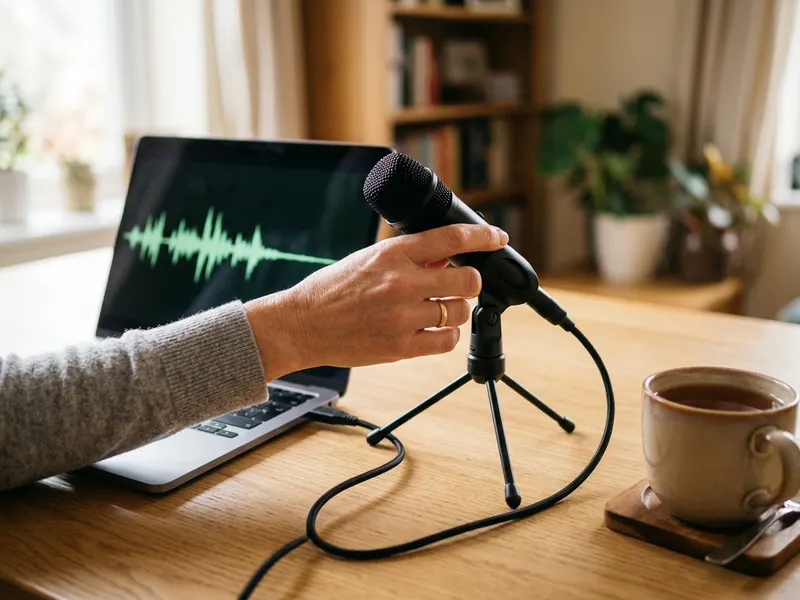 FIFINE K669B USB Microphone
Record the next clip cleaner than your phone mic, so the waveform has a clear voice to move to.
-
 DJI Mic Mini Wireless Microphone (2 pack)
Clip it on for interviews and voice notes, then turn the file into a video.
-
 Audio-Technica ATH-M20x Studio Headphones
Check your mix on honest studio headphones before you export the video.
Helps keep the tools free. ✨
Images are for illustration only. As an Amazon Associate I earn from qualifying purchases.


