Change Video Speed Online
Video Speed Changer lets you change video speed online: speed up or slow down an MP4, MOV or WebM from 0.25× to 2×, right in your browser. There is no watermark, no upload and no account. The video is re-timed on your own device and downloads straight to you as an MP4.
How to speed up or slow down a video
- Tap Select video and choose an MP4, MOV or WebM file.
- Tap a speed. The line under the buttons shows the new length of your video.
- Tap Export and watch the progress bar while the video is processed on your device.
- Tap Download video to save the new MP4.
Which speeds you can pick
There are five presets, because most people want a specific speed such as half speed rather than a slider:
- 0.25× and 0.5× slow the video down to a quarter or half speed, so a 20-second clip becomes 80 or 40 seconds.
- 1.25× and 1.5× speed it up a little.
- 2× plays it twice as fast and halves the length.
What happens to the audio
Open Audio settings under the speed buttons to choose how sound is handled:
- Mute audio (default) removes the sound. It is the best choice for heavily slowed video, where audio turns robotic.
- Stretch audio keeps the sound and changes its tempo to match the new speed.
Supported formats and the 250 MB limit
You can load MP4, MOV (the format iPhones record in) and WebM files up to 250 MB. The browser has to hold the whole file in memory, so the limit keeps phones from running out. The result is always an MP4 (H.264), which plays almost everywhere.
Why no watermark or upload
Most online speed editors upload your video to a server and stamp a watermark unless you pay. This tool runs FFmpeg compiled to WebAssembly inside your browser, so the file never leaves your device and nothing is added to the result.
Frequently Asked Questions
Can you slow down an MP4 video?
Yes. Select your MP4, tap 0.5× or 0.25× and tap Export. The video is re-timed on your device and saved as an MP4 you can download. There is no frame interpolation, so very slow speeds look like a steady, stretched version of the original rather than smooth slow motion.
How do I change video speed online without a watermark?
Select a video, tap a speed, tap Export, then Download video. The file is processed in your browser, so nothing is uploaded and nothing is stamped on the result. There is no account and no watermark.
Can I speed up a video without losing quality?
The tool re-encodes the video to change its timing, so the result is a new H.264 MP4 rather than a bit-for-bit copy. Resolution and frame size stay the same, and at normal viewing sizes the difference is rarely visible. Speeding up 2× plays the video in half the time, so some frames are skipped.
What happens to the sound when I change video speed?
By default the sound is removed, because audio sounds robotic when a video is heavily slowed. Open Audio settings and choose Stretch audio to keep it: the tempo is changed to match the new speed. A video with no audio track is exported silent either way.
Do I need to sign up or upload my video?
No. There is no sign up, and the video never leaves your phone or computer. FFmpeg runs in your browser using WebAssembly, so the whole job happens on your device.
Recommended
-
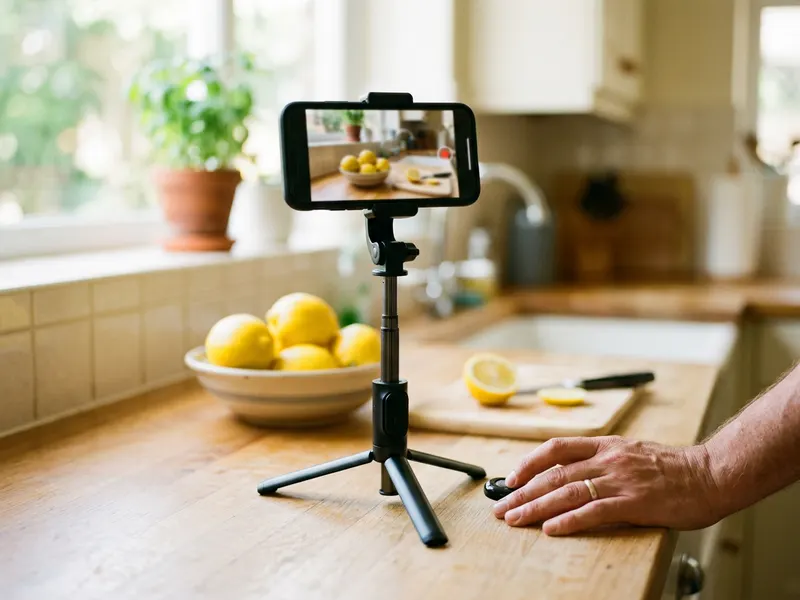 UBeesize Flexible Phone Tripod with Remote
Film the next clip steady, then set its pace
-
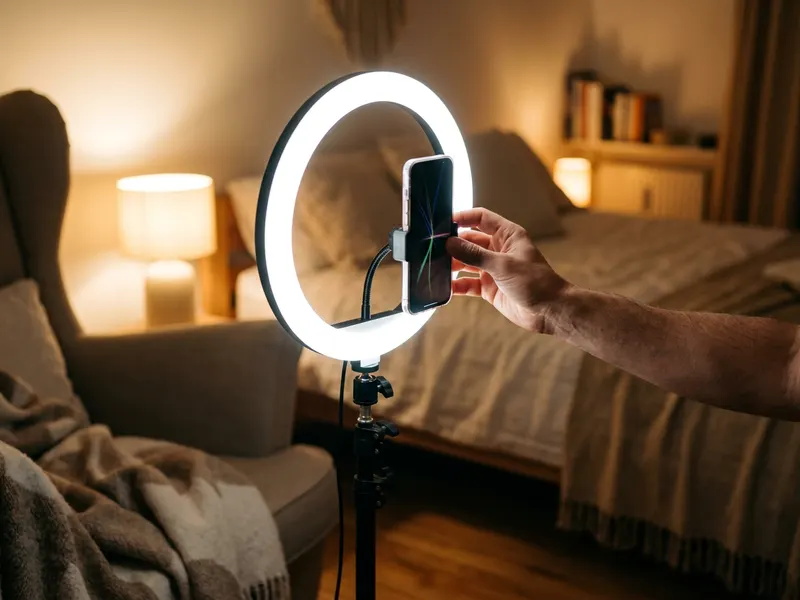 UBeesize 12" Ring Light with Tripod
Even light for clips that look good at any speed
-
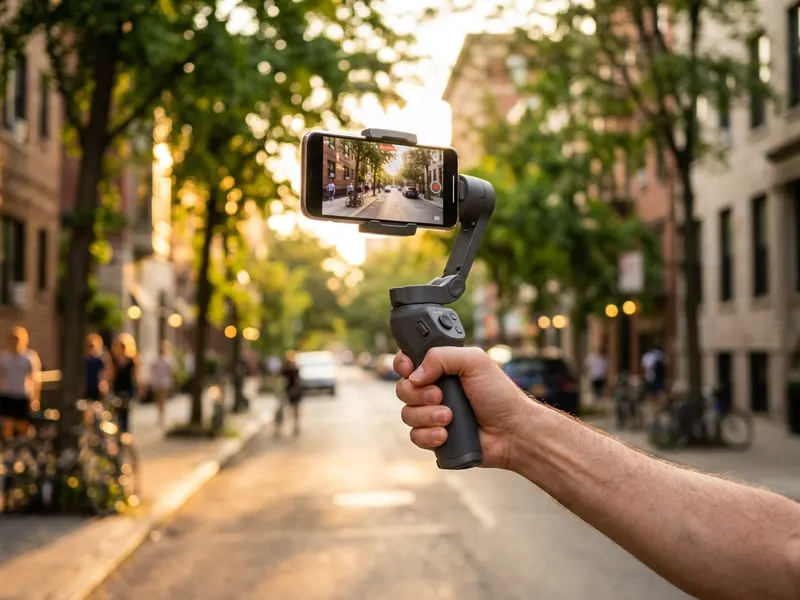 DJI Osmo Mobile 7 Phone Gimbal
Smooth footage that holds up in slow motion
Helps keep the tools free. ✨
Images are for illustration only. As an Amazon Associate I earn from qualifying purchases.