Remove Formatting from Text Online
Plain Text Converter is a free online tool that strips fonts, colours, bold, links, and styling out of any text you paste — Word copy, a web page, an email, or ChatGPT output. There is no sign-up, no upload, and no watermark: every clean-up happens in your browser, so your text never leaves your device. It installs to your home screen like an app.
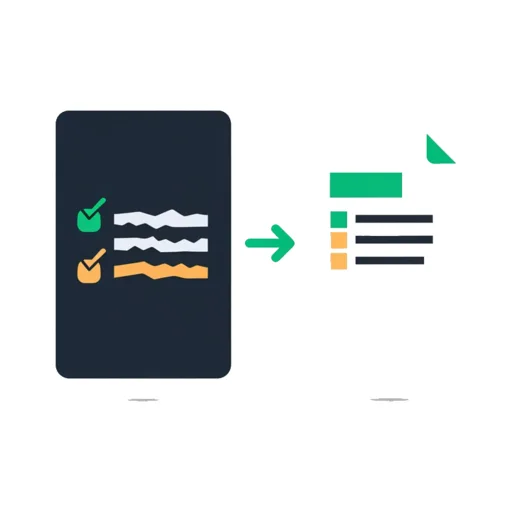
Paste your text above (or tap Paste & Clean) and the fonts, colours, bold, links, and styling are stripped out, leaving plain text you can copy. It all happens in your browser.
Need clean text right now? Paste it in and copy the plain version back in one tap.
Use the free Plain Text Converter →How it works
To remove formatting from text online, tap Paste & Clean
to pull the text in from your clipboard, or paste it straight into the box with
Ctrl/Cmd + V. Either route gives you plain text, because the tool only
keeps the plain-text version of what you copied and drops the rich formatting that rode along
with it. When the result looks right, tap Copy Plain Text to put the clean
version back on your clipboard.
There is one option below the box: Remove empty lines. Turn it on to condense runs of blank lines down to a single break — handy for tidying spaced-out paragraphs or the extra gaps that pasted and AI-generated text often carry. Leave it off to keep your line breaks exactly as they are.
Why use a plain text converter online free?
The fastest way to strip formatting from text online is a tool that needs no install and no account. Many places where you paste — Gmail, Notion, Confluence, a CMS, or a chat box — happily keep the source's fonts and colours, so your clean message arrives looking mismatched. Running the text through here first means it arrives as neutral plain text that inherits the destination's own styling instead.
Because it is browser-based, it gives you a way to remove all formatting from text online on any device — phone, tablet, or desktop — with the same result every time and no software to keep updated. Once the page has loaded it keeps working with no connection, so you can clean up text on the move.
Remove ChatGPT formatting in one tap
AI assistants like ChatGPT, Claude, and Gemini tend to reply with bold markers, headings, and bullet styling. Paste that answer somewhere plain — an email, a form, a ticket, a code comment — and the markup often tags along or turns into stray asterisks. To remove ChatGPT formatting online, drop the reply into this converter and copy the clean result back out. Switch on Remove empty lines to also flatten the generous spacing AI replies like to add.
Strip formatting from Word, Google Docs, and email
Copying from Microsoft Word, Google Docs, Outlook, or a web page usually brings a wall of hidden formatting with it — typefaces, sizes, link styling, and background colours. This tool reads only the plain-text payload of whatever you copied, so it works as a quick way to remove formatting from copied text online regardless of which app it came from. The cleaned text is yours to paste anywhere it needs to match its surroundings.
Frequently Asked Questions
How do I remove formatting from text online for free?
Tap Paste & Clean to pull the text in from your clipboard, or paste it straight into the
box with Ctrl/Cmd+V. Either way the fonts, colours, bold, links, and styling are
stripped and you are left with plain text. Tap Copy Plain Text to put the clean version back on
your clipboard. It is completely free, with no sign-up and no upload — everything runs in your
browser.
How do I remove ChatGPT formatting from text?
AI tools like ChatGPT often output text with bold markers, headings, and bullet styling that carry over when you paste them elsewhere. Paste the answer into this plain text converter and it strips that rich formatting back to clean, unstyled text you can drop into an email, form, or CMS. Turn on Remove empty lines to also condense the extra blank lines AI replies tend to include.
How do I paste without formatting on iPhone?
iOS has no system-wide paste-as-plain-text shortcut, so formatting usually tags along when you paste between apps. Open this tool in your mobile browser, tap Paste & Clean to read your clipboard, then tap Copy Plain Text — the copied result is now plain. You can add the page to your home screen so it works like an app.
How do I remove formatting from copied text online?
Copy the formatted text from its source — a web page, Word, Google Docs, or an email — then come here and tap Paste & Clean, or paste it into the box manually. The tool reads only the plain-text version of what you copied and discards the rich formatting, so the result is clean text ready to copy back out.
Does this work on Mac?
Yes. Many Mac apps offer Cmd+Shift+V to paste and match style, but it does not work
everywhere and behaves differently app to app. This plain text converter works in any browser on
macOS — and on Windows, iPhone, iPad, Android, or Linux — giving you the same clean result every
time without an app to install.
What is a plain text converter?
A plain text converter takes rich or formatted text and returns just the words, with no fonts, sizes, colours, bold, italics, links, or background styling. It is useful when you want text to inherit the style of wherever you are pasting it — a code editor, a form field, a CMS, or a chat box — instead of dragging its old formatting along.
Use the free Plain Text Converter →