Image Sequence to MP4 Converter
This free image sequence to MP4 converter stitches a batch of numbered PNG or JPG frames into a single H.264 video. Select your frames, choose a framerate, and the MP4 is built inside your browser: no upload, no account, no watermark. It suits rendered animation frames, stop-motion photos, time-lapse stills and screen-capture exports that came out of your software as a folder of pictures instead of a video. Use it as a PNG sequence to MP4 converter or to turn JPG frames into an MP4 online.
How to Convert a PNG or JPG Image Sequence to MP4
- Select the frames. Tap the drop area and pick every frame at once from your files or camera roll, or drag them in. Up to 1,000 files, all PNG or all JPG.
- Check the preview and set the framerate. You see the first frame, the number of frames found, the picture size and how long the video will run. Move the slider from 1 to 120 fps; the default is 24.
- Press Generate MP4. A progress bar follows the encode. When it finishes, the bar turns into a Download MP4 button and you can replay the video right there before saving it.
Frames are put in numeric order automatically, so frame_2 comes before frame_10 whether or not your numbers are padded with zeros (frame_0002, frame_0010). The finished file is an H.264 MP4 in the yuv420p format, which plays on phones, browsers, TVs and editors, and it has no audio track.
Frame Rate: How Fast Should the Sequence Play?
The framerate decides how long the video runs: 240 frames at 24 fps is ten seconds, at 12 fps it is twenty. Use the rate your frames were made for. 24 fps is the film standard and the default, 30 fps suits most screen recordings and web video, 60 fps is for very smooth motion, and 12 fps is common for hand-drawn and stop-motion work. The length shown under the preview updates as you move the slider, so you can see the result before you encode.
PNG Sequence with Transparency: the Matte Background Color
MP4 has no alpha channel, so a PNG sequence with transparent areas cannot keep them. Open Advanced settings and choose a background matte color: every transparent or semi-transparent pixel is blended onto that solid color. The default is black. Pick white for a light background, or the exact color of the page or scene the video will sit on so the edges look clean. The preview of your first frame is drawn on a checkerboard so you can tell which parts are transparent. JPG frames are already opaque, so the matte only shows on them as the border around a smaller frame (see below).
Starting Frame Number and Frame Ordering
Files are sorted by name in natural numeric order, so exports like shot_0001.png, render.12.png or img_5.jpg line up correctly. If your sequence does not begin where you want the video to begin, type a starting frame number in Advanced settings: frames whose last number in the file name is lower than it are skipped. Leave the field empty to use every frame. The grey hint in the field shows the lowest number found in your file names. If a start number is set, files with no number in their name are left out.
Mixed Frame Sizes, Resolution and Limits
The video takes its size from the first frame it uses. If a later frame has a different size, it is scaled to fit inside that canvas without stretching or cropping, and the remaining space is filled with the matte color. Widths and heights are rounded to even numbers, which H.264 requires, and a very large first frame is scaled down so the long side of the video is at most 3,840 pixels. A batch can hold up to 1,000 frames and 500 MB in total, and it must be a single format. Everything is held in your device's memory while it encodes, so for a very long, high-resolution sequence, encode it in parts and join the pieces afterwards.
Why Use This Instead of Blender, Premiere Pro or FFmpeg
Video editors and 3D packages can turn an image sequence into a video, but you need the software, a project and an export dialog. FFmpeg does it in one command, if you have it installed and know the syntax. This tool gives you that same FFmpeg encode, with libx264, on a page: no install, no command line, no account and no file leaving your device. If you then need a shorter clip, trim it with the video trimmer; for a looping animation, the video to GIF converter takes an MP4 and makes a GIF; and to go the other way, GIF frame splitter breaks an animation back into still frames.
Frequently Asked Questions
How do I convert an image sequence to video?
Select all the numbered frames at once, set the framerate, and press Generate MP4. The frames are put in numeric order, stitched together and encoded as an H.264 MP4 you can download. It takes one screen of settings and no software: everything runs in your browser, so nothing is installed and nothing is uploaded.
How do I turn a PNG sequence into an MP4 online for free?
Choose your PNG files in one go (or drag them onto the drop area), leave the framerate at 24 or move the slider, and press Generate MP4. It is free, needs no account and adds no watermark. Because the encoding happens on your own device, a long PNG sequence never has to be uploaded anywhere first.
Can I convert a JPG sequence to MP4?
Yes. JPG and JPEG frames work exactly like PNG frames. The one rule is that a single batch has to be all one format, so a folder that mixes .png and .jpg files needs to be split first; the tool tells you if a selection mixes them.
What happens to transparent PNG frames in the MP4?
MP4 (H.264) cannot store transparency, so transparent areas are filled with a solid matte color instead. The default is black. Open Advanced settings and pick another color, such as white or a green that matches your background, and every transparent or semi-transparent pixel is blended onto it. JPG frames have no transparency, so the matte only matters for PNG frames, or for the empty space around a frame that is smaller than the first one.
Can I convert an image sequence to MP4 with FFmpeg?
Yes, and this tool does it for you: it runs FFmpeg (compiled to WebAssembly) inside your browser tab and encodes the frames with the libx264 codec in the yuv420p pixel format, which plays almost everywhere. You get the result of an ffmpeg image-sequence command without installing ffmpeg or typing one.
Can I turn frames rendered in Blender into an MP4?
Yes. Render your animation as a PNG or JPG sequence, select the frame files here, and set the framerate to the one your project used. Frames exported from Blender, After Effects, Premiere Pro, DaVinci Resolve or a game capture all work the same way, as long as they are PNG or JPG and share one format.
What frame rate should I use for an image sequence?
Use the framerate your frames were made for. 24 fps is the film standard and the default here, 30 fps suits most screen recordings and web video, and 60 fps is for smooth motion. Stop-motion and hand-drawn work often uses 12. The slider goes from 1 to 120 fps, and the length readout shows how long the video will be.
Are my images uploaded anywhere?
No. The frames are read and encoded on your own device and never sent over the network. The only download is the video encoder itself, which loads once when you first use the tool. There is no account, and the MP4 you download is yours alone.
How many frames can I convert at once?
Up to 1,000 frames and 500 MB in total per batch, all in the same format (PNG or JPG). If the first frame is larger than that, the video is scaled down so its long side is at most 3,840 pixels. Very large batches are limited by your device's memory, so for a long, high-resolution sequence, encode it in parts.
Recommended
-
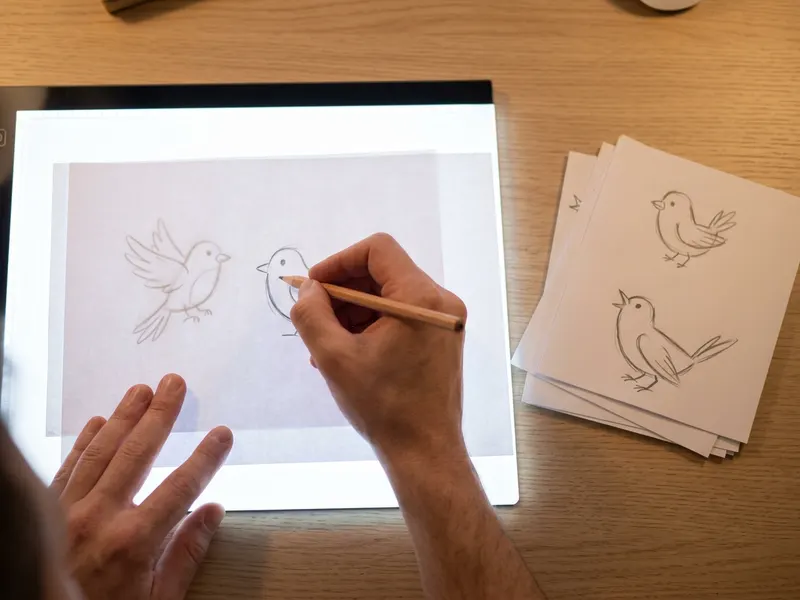 LitEnergy A4 LED Tracing Light Pad
Trace your next set of hand-drawn frames, then turn them into an MP4.
-
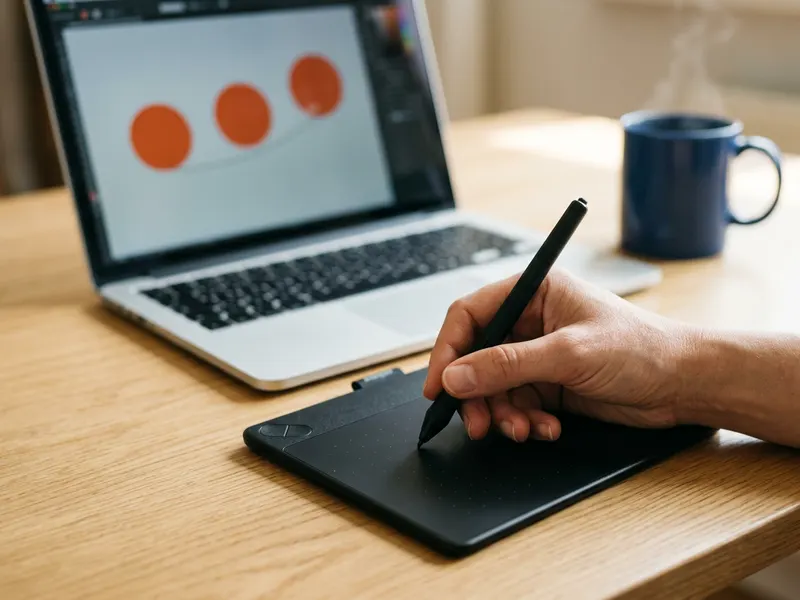 Wacom Intuos Small Pen Tablet (Bluetooth)
Draw your animation frames by hand and export them as a sequence.
-
 The Animator's Survival Kit (Richard Williams)
The classic on timing and spacing, for smoother frame sequences.
Helps keep the tools free. ✨
Images are for illustration only. As an Amazon Associate I earn from qualifying purchases.