Keyboard Tester Online
Keyboard Tester is a free keyboard tester online that checks every key on your keyboard.
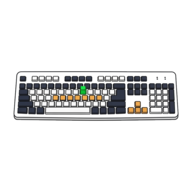
Press any key and it lights up on the virtual keyboard below; released keys stay shaded, so you can see
exactly what you’ve covered. It shows a live event log — event.key,
event.code, and keyCode side by side — counts n-key rollover,
and helps you spot dead, stuck, or ghosting keys. There is nothing to download and nothing is uploaded.
Press any key and it lights up on the keyboard above — released keys stay shaded so you can see what you’ve covered. Watch the event log and the “max at once” counter to check for dead keys, stuck keys, and n-key rollover. Nothing is uploaded.
Ready to test your keyboard? Just press a key.
Use the free Keyboard Tester →Check Which Keyboard Keys Are Working
The quickest way to check if your keyboard keys are working is to press each one and watch the on-screen keyboard react. A working key lights up the moment you press it and stays shaded after you let go, so you build up a map of what you’ve tested. The “keys tested” counter tells you how many of the full layout you’ve hit so you don’t miss the function row or the numpad.
- Open capsuletools.app/keyboard-tester/ in your browser
- Press each key on your physical keyboard, one section at a time
- Watch the matching key light up and stay shaded once tested
- Press Reset to clear the board and start a fresh test
Test for Dead, Stuck, and Ghosting Keys
A dead key never lights up and never shows in the event log — press it as hard as you
like and nothing happens. A stuck key is the opposite: it keeps firing (or stays lit)
when you aren’t pressing it, which shows as repeating keydown rows in the log.
Ghosting shows up when you hold several keys at once and one of them refuses to register —
a sign the key matrix can’t report that combination. This makes the tool a practical
online keyboard checker — or virtual keyboard checker, if you prefer — for a failing membrane, a
sticky switch, or a spill.
N-Key Rollover Test — See How Many Keys You Can Press at Once
N-key rollover (NKRO) is how many keys a keyboard can report at the exact same time. To run an n key rollover test online, hold down as many keys as you can and watch the Held now and Max at once counters. On a full-NKRO mechanical keyboard the “max at once” number keeps climbing well past six; on a basic membrane keyboard it plateaus and extra presses get dropped (that’s ghosting). The peak counter is the honest measure of your keyboard’s rollover — not just a pass/fail badge.
Read the Event Log (event.key, event.code, keyCode)
Every press and release is logged with its raw browser data: the event type
(keydown / keyup), event.key (the character the key produces),
event.code (the physical key’s position, independent of layout), and the legacy
keyCode number. Because the virtual keyboard matches on event.code, the correct
physical key lights up even if you type in Dvorak, AZERTY, or another layout. Use Pause log
to freeze the list so you can read a specific scancode without new events scrolling it away.
Works on Mac, Windows, and Laptop Keyboards
This keyboard tester works on Mac, Windows, Linux, and Chromebook in any modern
browser — a reliable way to test keyboard online on Mac or PC without installing anything — and works
the same on a built-in laptop keyboard as on an external one. Flip the Windows / macOS
toggle to relabel the modifier keys — ⌘ Command and ⌥ Option on a Mac,
Win and Alt on a PC — so the on-screen layout reads like the keyboard in front of
you. It’s a handy check before selling a laptop or after a repair.
Frequently Asked Questions
What is n-key rollover?
N-key rollover (NKRO) is a keyboard’s ability to register many keys pressed at the same time, each one independently. On a keyboard with full NKRO you can hold down a dozen or more keys and every one is reported; on a limited keyboard, extra presses get dropped. Use the “Max at once” counter in the tester: hold as many keys as you can at once and watch how high the number climbs.
What is keyboard ghosting?
Ghosting is when a keyboard fails to register a key press because too many other keys are held at once, or reports a key you never pressed. It happens on keyboards without anti-ghosting circuitry when certain key combinations collide in the key matrix. If you hold three or four keys here and one of them doesn’t light up, that combination is ghosting on your keyboard.
How do I check if my keyboard keys are working?
Press each key one at a time and watch the virtual keyboard: a working key lights up and stays shaded once you release it. Any key that never lights up when you press it is dead or disconnected. The “keys tested” counter tracks how many of the full layout you’ve covered so you don’t miss one.
What is a dead key on a keyboard?
A dead key is a physical key that no longer registers any input — you press it and nothing happens. (This is different from the linguistic “dead key” used to add accent marks to letters.) In this tester, a dead key is one that never lights up and never appears in the event log no matter how firmly you press it.
Does this keyboard tester work on Mac and Windows?
Yes. It runs in any modern browser on macOS, Windows, Linux, and Chromebook — there is nothing to install. Use the Windows / macOS toggle to relabel the modifier keys (Command and Option on Mac, Win and Alt on Windows) so the on-screen layout matches the keyboard in front of you.
Can I test a laptop keyboard with this?
Absolutely — this keyboard tester for laptop keyboards works exactly the same as on a desktop: a laptop keyboard sends the same key events as an external one, so every key, including the function row and arrow keys, lights up the same way. It is an easy way to check a laptop keyboard for dead or sticky keys before a repair or before selling it.