Invert Image Colors Online
Choose a picture and it is turned into its color negative: every pixel's red, green and blue value becomes 255 minus itself, so white turns black, red turns cyan and dark turns light. Transparency is left untouched, the full resolution is kept, and the file you download is in the same format as the one you chose. PNG, JPG, WebP, GIF and HEIC all work, and the image is inverted in your browser, so it is never uploaded.
How to invert the colors of an image
- Select Choose an image or drop it here and pick a file, or drag one onto it.
- Check the preview. It shows the inverted image on a checkerboard, so any transparent area is visible as the checkerboard showing through.
- Select Download inverted image to save it. After it has saved, the button reads Download again.
- To get a black-and-white negative, tick Grayscale first below the button. The preview updates instantly, and you can download again to save that version too.
- To invert a different picture, select Start over in the top bar, which takes you back to the first screen.
What inverting does to each color
An image is stored as a red, green and blue number from 0 to 255 for each pixel. Inverting replaces each of the three with 255 minus its value. That is a true photographic negative, and it is why inverting a second time gives you back the original colors.
| Color | Before (R, G, B) | After (R, G, B) | Becomes |
|---|---|---|---|
| White | 255, 255, 255 | 0, 0, 0 | Black |
| Black | 0, 0, 0 | 255, 255, 255 | White |
| Red | 255, 0, 0 | 0, 255, 255 | Cyan |
| Green | 0, 255, 0 | 255, 0, 255 | Magenta |
| Blue | 0, 0, 255 | 255, 255, 0 | Yellow |
Orange #FF8800 | 255, 136, 0 | 0, 119, 255 | Blue #0077FF |
| Mid gray | 128, 128, 128 | 127, 127, 127 | Almost unchanged |
A mid-tone barely moves, so a picture made mostly of grays around 128 looks much the same after inverting, while a high-contrast picture changes completely. To read the exact value of a color in the downloaded result, open it in the Image Color Picker, which gives HEX and RGB.
Invert a PNG and keep its transparency
Only the three color values are inverted. The alpha value, which says how see-through a pixel is, is never changed, so a logo with a transparent background or a soft shadow stays transparent in exactly the same places. A PNG goes in and a PNG comes out, with no quality lost. This is what you want for a white logo that has to become black, or the other way round.
Grayscale first: black-and-white negatives for heightmaps and wavetables
Switch on Grayscale first and each pixel is first reduced to a single gray level, using the weights 0.299 red, 0.587 green and 0.114 blue, and that gray is then inverted. The result has no color left, only a pure gray negative. It is useful when you need to flip the peaks and valleys of a grayscale heightmap, or the shape of an image that is read as a wavetable, without a color cast. Pure red, for example, becomes gray 179 rather than cyan. If you only want the black-and-white version without inverting it, the Grayscale Converter does that.
Which format and size you get back
| You choose | You download | Note |
|---|---|---|
| PNG | PNG | Lossless |
| JPG | JPG | Saved again at quality 95, so not byte-for-byte the same file |
| WebP | WebP | Full quality. A browser that cannot write WebP gives a PNG instead |
| GIF | PNG | An animated GIF uses its first frame only |
| BMP | PNG | |
| HEIC or camera RAW | JPG | Decoded in your browser first |
The file is named after the original with -inverted added, so logo.png downloads as logo-inverted.png.
The full original resolution is kept. The one exception is an image longer than 6000 px on its long edge, which is scaled down to 6000 px. No watermark is added.
To get a different format, run the result through the Image Converter.
What this tool does not do
- It inverts the whole image. It cannot invert only a selected part.
- It is a true negative only. It does not keep hues, and it does not offer an "invert lightness only" mode.
- It does not adjust brightness, contrast or colors, and it does not let you pick a color to swap.
- It handles one image at a time, with no batch mode.
- It does not process an animated GIF frame by frame; only the first frame is used.
- It does not mirror or rotate the picture. "Invert" here means the colors; to flip the image left to right or top to bottom, use the Image Flipper.
Frequently asked questions
How do I invert the colors of an image?
Select Choose an image or drop it here and pick a picture. The preview shows the inverted image straight away. Select Download inverted image to save it. Every pixel's red, green and blue value is replaced by 255 minus itself, so white becomes black, red becomes cyan and a light sky becomes a dark one.
How do I invert a PNG and keep the transparency?
Choose the PNG and download the result. Only the red, green and blue values are inverted; the alpha (transparency) value of every pixel is left alone, so transparent and semi-transparent areas stay exactly as they were. The preview sits on a checkerboard so you can see them, and the download is a PNG again.
How do I invert a black and white image?
Choose it as you would any other image. Black becomes white, white becomes black and every gray flips around the middle, so 64 becomes 191. Grayscale first is not needed for a picture that is already gray; it only matters for a color image you want turned black and white before the inversion.
Can I invert a JPG, WebP, GIF or HEIC photo?
Yes. PNG, JPG, WebP, GIF and BMP files work, and so do HEIC photos and camera RAW files, which are decoded in your browser. A JPG comes back as a JPG, a WebP as a WebP and a PNG as a PNG. HEIC and RAW photos come back as JPG, and GIF and BMP files come back as PNG.
What file name and format does the inverted image get?
The original name plus -inverted, in the same format as the original wherever the browser can write it: photo.png becomes photo-inverted.png and holiday.jpg becomes holiday-inverted.jpg. In a browser that cannot write WebP, a WebP downloads as a PNG instead.
What does Grayscale first do?
It turns the picture black and white before the inversion, using the luma weights 0.299 red, 0.587 green and 0.114 blue, so the result is a pure gray negative with no color left. It is off by default, the preview updates the moment you switch it on, and it is meant for heightmaps and wavetables.
How do I invert colors on an iPhone or Android photo?
Open this page in your phone's browser, select Choose an image or drop it here and pick a photo from your library. iPhone HEIC photos are accepted and downloaded as JPG. The file goes to wherever your phone's browser keeps downloads.
Does inverting reduce the image quality or add a watermark?
No watermark is added. The full resolution is kept, except that an image longer than 6000 px on its long edge is scaled down to 6000 px. A PNG is saved losslessly. A JPG is saved again at quality 95, so it is not byte-for-byte the same file, and a WebP is saved at full quality.
Is my image uploaded anywhere?
No. The image is inverted by your browser on your own device, and nothing is sent to a server.
Recommended
-
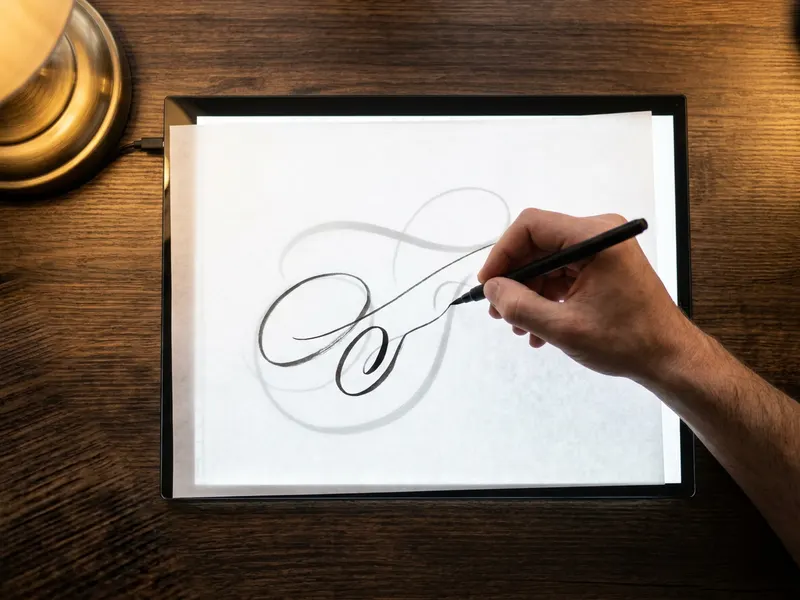 LitEnergy A4 LED Tracing Pad
Trace your flipped logo or sketch onto paper over a bright, even light.
-
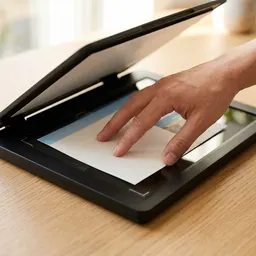 Canon CanoScan LiDE 300 Flatbed Scanner
Scan a print or an old photo, then flip its colors into a negative.
-
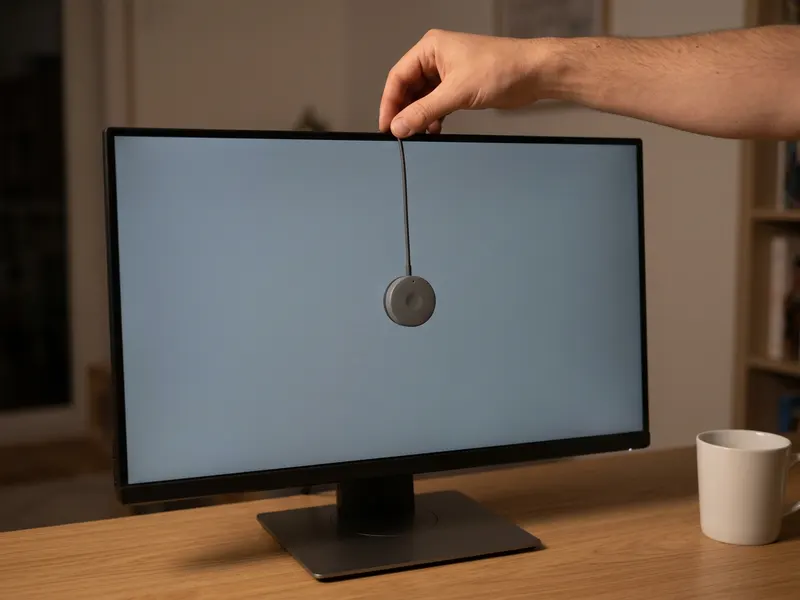 Calibrite Display 123 Colorimeter
Check your screen shows the flipped colors true before you export.
Helps keep the tools free. ✨
Images are for illustration only. As an Amazon Associate I earn from qualifying purchases.


