Image Upscaler: Enlarge a Low-Resolution Image 2× or 4×
This image upscaler makes a small, blurry or pixelated picture bigger and sharper. An AI super-resolution network from the ESRGAN family redraws it at 2× or 4× the pixel size and gives you a PNG. The network runs in your browser on your graphics chip, so the image is never uploaded, there is no account and the result has no watermark. It works best on pictures of roughly 100 to 500 pixels: a profile photo, an old low-res picture, a thumbnail, a pixelated logo or game art.
How to upscale an image
- Select Settings under the drop zone. Under Make it choose 2× larger or 4× larger (it starts on 4× larger), and under Image type choose Photo or Illustration. Do this first: the settings are read when you pick the file.
- Choose an image or drop it on Choose an image or drop it here. It accepts JPG, PNG, WebP, RAW or HEIC up to 1,000 × 1,000 pixels, and the upscale starts as soon as the file is picked.
- Wait on Upscaling your image. It shows Loading the AI model… with a percentage, then Sharpening, part X of Y, then Building your PNG…. Keep the tab open, and select Cancel to stop.
- Drag the handle on the Before and After slider, or press the arrow keys, to compare. The line under it shows the change, for example "64 × 64 px to 256 × 256 px".
- Select Download High-Res to save the PNG. It is named after your file, as
photo-upscaled-4x.pngorphoto-upscaled-2x.png. Start over (or the back arrow in the top bar) returns to the drop zone for the next image.
What 2× larger and 4× larger give you
The output is always a PNG at exactly 2× or 4× the width and height of the original, so a 4× upscale has sixteen times as many pixels.
| Original | 2× larger | 4× larger |
|---|---|---|
| 64 × 64 px | 128 × 128 px | 256 × 256 px |
| 250 × 250 px | 500 × 500 px | 1,000 × 1,000 px |
| 480 × 360 px | 960 × 720 px | 1,920 × 1,440 px |
| 1,000 × 1,000 px (the limit) | 2,000 × 2,000 px | 4,000 × 4,000 px |
Pick 4× larger for a small picture you want to use big, such as a 200 pixel avatar for a banner. Pick 2× larger when the image is already decent and you only need a little more room, or when 4× would be bigger than you need.
Photo or Illustration: which image type to choose
- Photo: best for photos and other real-world pictures. It uses the smaller model, so it is quick to load and run.
- Illustration: best for drawings, logos, line art, comics and game graphics. It is slower, but keeps edges clean.
If you are unsure, run the same image both ways and compare the results. Use Start over, change the setting and pick the file again to try the other type. An AI upscaler redraws edges rather than copying pixels, so it is not the tool for keeping hard square pixel blocks exactly as they are.
Upscale an image without losing quality: what the AI can and cannot do
Ordinary resizing stretches the pixels you already have, which is why an enlarged picture looks soft or blocky. That is the Before side of the slider: your original enlarged with plain smoothing. The After side is the AI result. The network has learned what edges, skin, hair, foliage and line art usually look like, so it draws smooth edges and believable detail where the plain version shows blocks.
It does not recover information that is not in the file. The detail it adds is plausible, not the true detail, so do not use it to read a licence plate or a blurred word. Text in a tiny screenshot may stay soft, and a face in a 40 pixel crop will be a clean guess at a face. The gain is biggest on small, blocky or compressed pictures and smaller on images that were already sharp.
Image size limits and file types
- Longest edge: 1,000 pixels. A bigger image is refused with its size in the message. Shrink it first with the Batch Image Resizer, or cut out the part you want with the Image Cropper, which also saves time.
- Formats: JPG, PNG and WebP. RAW and HEIC photos are decoded first, down to at most 1,000 pixels. A GIF or BMP uses its first frame.
- Transparency: a transparent PNG keeps its transparency in the result.
- One image at a time. Use Start over between images.
How long it takes, and the first-run download
Speed depends on your graphics chip. A small image takes seconds. A 1,000 pixel image at 4× larger with Illustration can take a minute or more, which is why the progress screen asks you to keep the tab open.
The AI model is a separate file, downloaded once from a public CDN and then kept by your browser. It is about 3 MB for Photo and about 28 MB for Illustration, and there is one file for each of 2× and 4×. So the first run needs a connection, and a first Illustration run is a bigger download. If the download fails, the message says to check your connection and try again.
Is my image uploaded?
No. Reading, sharpening and building the PNG all happen on your device, on the graphics chip through WebGL. The only thing fetched from the network is the AI model file. The upscaler needs WebGL: if hardware acceleration is off or missing, it tells you to turn it on in the browser settings or to try a different browser, rather than quietly crawling on the processor.
After upscaling
A 4× PNG can be a large file. To make it lighter for a website or email, use the Image Compressor, or the Image Converter to save it as a JPG or WebP. The Background Remover cuts the subject out to a transparent PNG, and the Image Compare tool compares two images with its own before and after slider.
Image upscaler questions
How do I upscale an image online for free?
Choose an image on the drop zone and the upscale starts at once. Open Settings first if you want 2× larger or 4× larger and the Photo or Illustration image type, because they must be set before you pick the file. When the slider appears, select Download High-Res to save the PNG. There is no account and no watermark, and the image stays on your device.
Can I upscale an image without losing quality?
Yes, in the sense that it does not get worse: the result is a lossless PNG at exactly 2× or 4× the pixel size, with blockiness and blur removed by an AI model. It cannot recover detail the original never held, so it adds plausible detail rather than the true one. Use the Before and After slider to judge it on your own image.
How do I make a low resolution image high resolution?
Under Settings pick 4× larger for the biggest jump, choose the image, and download the PNG. A 250 × 250 pixel picture becomes 1,000 × 1,000 pixels, and a 480 × 360 pixel picture becomes 1,920 × 1,440. Results are best on images of roughly 100 to 500 pixels along the longest edge, which is where an enlargement helps most.
Is there an AI image upscaler with no sign up and no watermark?
Yes. This one needs no account, no email and no payment, and the PNG you download has no watermark. The AI model runs in your browser on your graphics chip, so there is no upload queue and no credit limit. You can run as many images as you like, one at a time.
Does the image upscaler upload my photo?
No. Your image is read and sharpened on your own device, and the PNG is built there too. Only the AI model file is downloaded, once, from a public CDN, and your browser keeps a copy. It is about 3 MB for Photo and about 28 MB for Illustration, for each of 2× and 4×.
Can I upscale an image larger than 1,000 pixels?
No. The longest edge can be at most 1,000 pixels, and a bigger image is refused with its size in the message. Shrink it first, for example with the Batch Image Resizer, then upscale it. The output reaches 4,000 × 4,000 pixels at most.
How do I upscale a logo or a PNG with a transparent background?
Choose the logo, set Image type to Illustration under Settings, and pick 2× larger or 4× larger. Illustration keeps edges clean on drawings, logos, line art, comics and game graphics. Transparent PNGs keep their transparency in the result.
Why does it say WebGL is off or missing?
The AI model needs your graphics chip, which the browser reaches through WebGL. If hardware acceleration is switched off in the browser settings, or the browser has no WebGL, the upscaler says so instead of running slowly on the processor. Turn on hardware acceleration in the browser settings, or open the page in a different browser.
Recommended
-
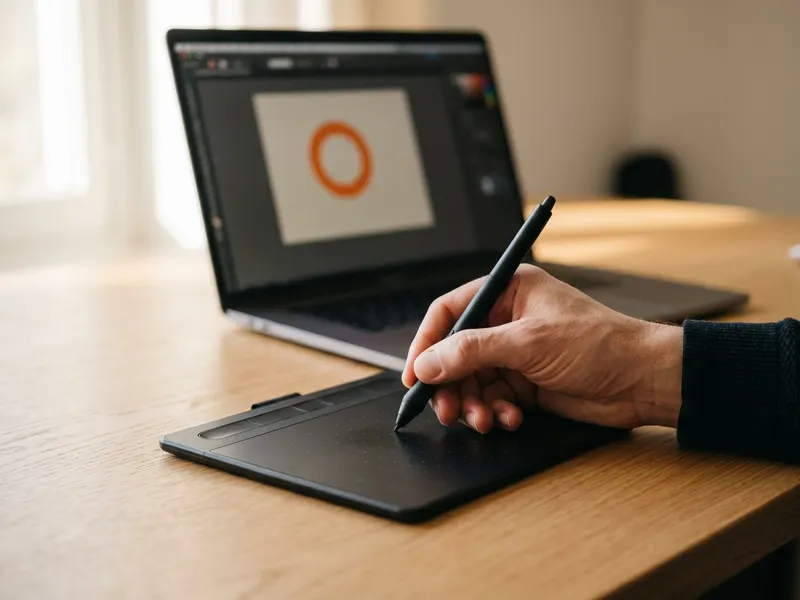 Wacom Intuos Small Drawing Tablet
Redraw the rough edges of your enlarged avatar or logo by hand.
-
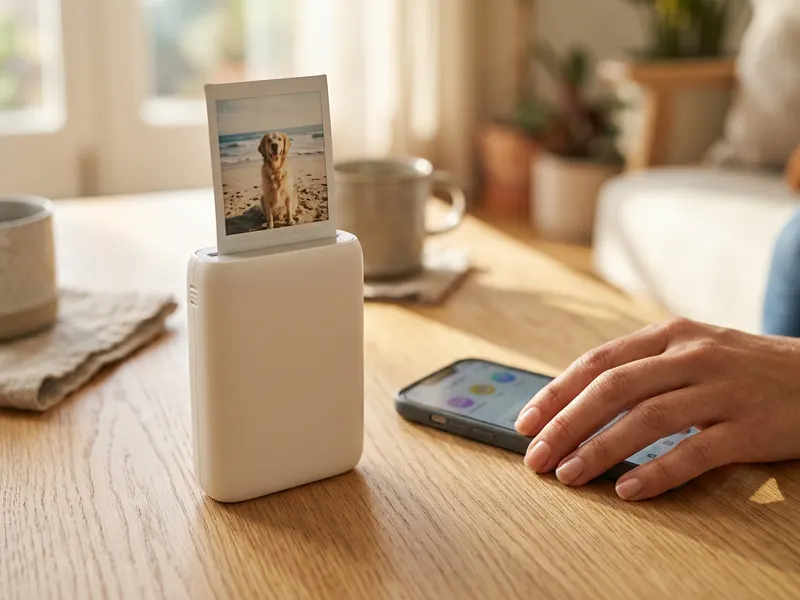 Fujifilm Instax Mini Link 3 Phone Printer
Print the sharpened picture as a pocket-size photo straight from your phone.
-
 Canon CanoScan LiDE 300 Flatbed Scanner
Scan the old print first, then enlarge it here.
Helps keep the tools free. ✨
Images are for illustration only. As an Amazon Associate I earn from qualifying purchases.


