Image to Pixel Art Converter
Turn a photo into pixel art by choosing how big the blocks are and how many colors to keep. Switch to a Game Boy, Commodore 64 or EGA palette for a retro look. You get a PNG at the same size as your original, and the photo is never uploaded.
How to turn a photo into pixel art
- Press Choose an image or drop it here and pick a JPG, PNG, WebP or HEIC photo, or a camera RAW file such as DNG. Files up to 15 MB work.
- The Preview & save screen shows the pixel art straight away. Transparent areas appear as a checkerboard.
- Drag Block size (2 to 64 px, starts at 8) to make the pixels smaller or chunkier.
- Drag Color count (2 to 64, starts at 16) to keep more or fewer colors.
- For a fixed retro palette, press Advanced and choose from the Palette dropdown.
- Press Download PNG. After changing a setting, press Download again to save another version.
- To convert a different photo, use the back arrow (Start over) in the top bar.
The file is named your-photo-pixel-art.png: the original name, then -pixel-art, then .png.
What Block size and Color count do
The line Pixel grid: C × R blocks · Saves at W × H px always shows the result in numbers. Each block of source pixels becomes one flat-colored pixel, so a 4000 × 3000 px photo at the default Block size of 8 becomes a grid of 500 × 375 blocks and still saves at 4000 × 3000 px.
- Block size: how many source pixels wide and tall each pixel-art pixel is. Small blocks keep detail, large blocks make bold, chunky pixels. Faces and busy scenes need small blocks; logos and landscapes still read at large ones.
- Color count: how many colors the picture is reduced to. Fewer colors give a more retro, poster-like look. Keep it higher when you want skin tones and skies to stay smooth.
Pixel art palettes: Auto, Grayscale, Game Boy, Commodore 64 and EGA
Press Advanced to open the Palette dropdown. Every pixel is matched to the nearest color in the palette. No dithering is added, so each color area stays flat.
| Palette | Colors | Result |
|---|---|---|
| Auto (from your image) | Set by Color count | The best colors are picked from your own photo, so it looks like your image. The default. |
| Grayscale | Set by Color count | Evenly spaced shades from black to white. Color count sets how many. |
| Game Boy | 4 (fixed) | The four greens of the original Game Boy screen. |
| Commodore 64 | 16 (fixed) | The 16 colors of the C64’s VIC-II graphics chip. |
| EGA | 16 (fixed) | The default 16-color EGA palette from classic PC games. |
With Game Boy, Commodore 64 or EGA, the Color count slider is greyed out because those palettes have a fixed set of colors.
What you get: a full-size PNG with hard edges and transparency kept
- Same size: the PNG has the same pixel dimensions as your original, not a tiny sprite. The size of one pixel-art pixel equals the Block size. Only a photo above about 16 megapixels is scaled down slightly first.
- Hard edges: the small grid is scaled back up with nearest-neighbor edges, so there is no blur between blocks. There are no outlines either.
- Transparency: a block that is more than half transparent becomes fully transparent, otherwise fully opaque.
- Always PNG: whatever you choose, the file saves as a PNG. HEIC photos and camera RAW files are decoded first (RAW at up to 6000 px on the long edge), so their result can be a little smaller than the source.
- One image at a time: there is no batch mode.
Crop, resize or convert the pixel art
Pixel art works best when the subject fills the frame, so crop first with the image cropper. Need the picture at another size, or many files at once? Use the batch image resizer. If the full-size PNG is bigger than you want, run it through the image compressor, or switch format with the image converter. For other stylized looks, try image to grayscale or image to ASCII.
Frequently Asked Questions
Does this pixel art converter use AI?
No. Each block of the photo is averaged to one color, that color is matched to the nearest color in the palette, and the small grid is scaled back up with hard edges. There is no AI model, so the same photo with the same settings gives the same result every time.
How do I convert an image to 8-bit pixel art?
Raise the Block size to about 8 to 16 px so the pixels are chunky, then lower the Color count to 16 or fewer. For a console look, press Advanced and pick the Game Boy, Commodore 64 or EGA palette. The result is a flat-color, hard-edged PNG with no smoothing or dithering.
How do I convert an image to Game Boy colors?
Press Advanced, open the Palette dropdown and choose Game Boy. The picture is limited to the 4 greens of the original Game Boy screen, and the Color count slider is greyed out because the palette is fixed. A larger Block size gives the chunky look of a handheld screen.
Can I make a 32x32 pixel art image from a photo?
Not as a tiny sprite. The PNG always saves at the same pixel size as your original, with each block drawn as a square of the Block size. To get a 32 x 32 grid, make the photo a square first, then pick a Block size so the Pixel grid line reads 32 x 32. A 640 x 640 px square with a Block size of 20 gives exactly that.
What is the difference between pixelating an image and making pixel art?
Pixelating usually just turns the picture into blocks and keeps nearly every color. Pixel art also limits the colors to a small palette, which is what gives the retro look. Here you control both: the Block size sets how big the blocks are, and the Color count (2 to 64) or a fixed palette sets how many colors remain.
Can I get a grid for Minecraft or crochet pixel art?
This tool makes the pixelated picture, not a chart. It does not draw grid lines, number the squares or match Minecraft block colors or yarn colors. The Pixel grid line on the Preview and save screen does tell you how many blocks wide and tall the picture is, which is the size of the chart you would need.
Can I convert a PNG to pixel art and keep the transparency?
Yes. Transparent areas show as a checkerboard in the preview and stay transparent in the PNG. A block that is more than half transparent becomes fully transparent, otherwise it becomes fully opaque, so there are no half-see-through edges. HEIC photos and camera RAW files such as DNG also work and download as PNG.
Is my photo uploaded when I convert it to pixel art?
No. The image is read and converted inside your browser, in a background worker, so it never leaves your device. The converter is free and there is no account to make.
Recommended
-
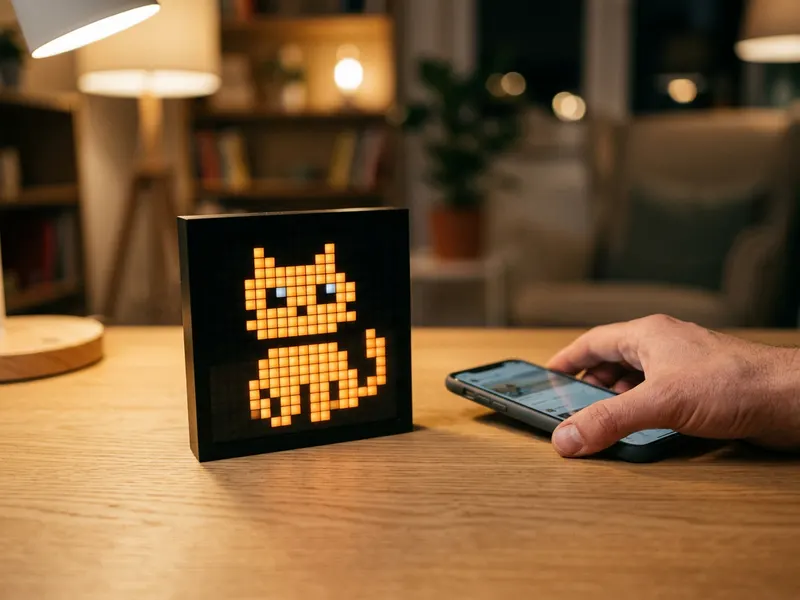 Divoom Pixoo Pixel Art Display
Set the pixel grid to 16 x 16 and give your photo-turned-pixel-art a glowing home on the desk.
-
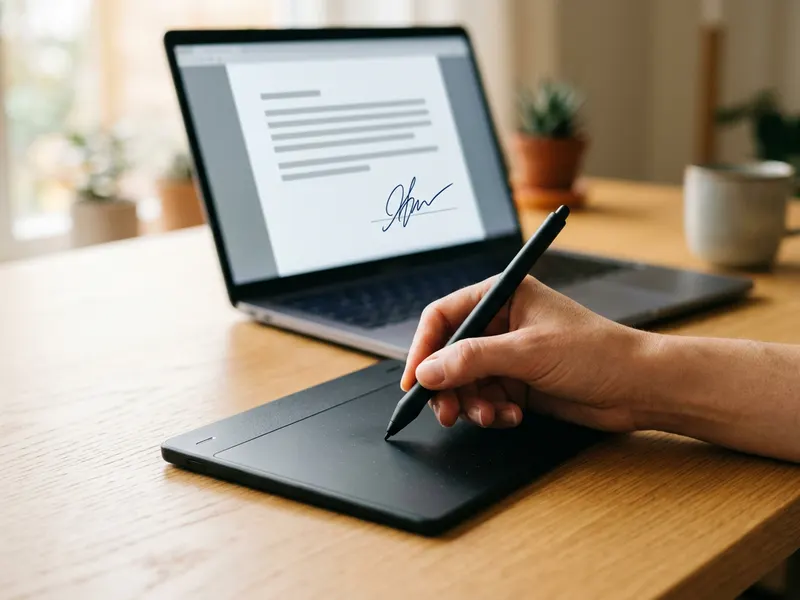 HUION Inspiroy H640P Pen Tablet
Clean up stray blocks or draw your own sprites by hand, with a pen instead of a mouse.
-
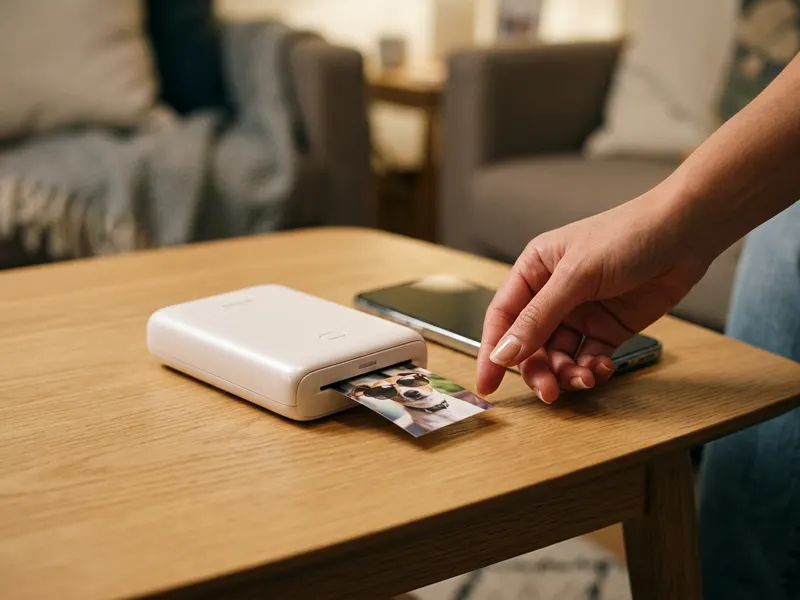 HP Sprocket Portable Photo Printer
Print your pixel art as a sticker for a game case, a laptop lid or a journal page.
Helps keep the tools free. ✨
Images are for illustration only. As an Amazon Associate I earn from qualifying purchases.


