Webcam and Mic Test
Check your camera and microphone before a Zoom, Teams, Meet or Discord call, or when a new webcam or headset seems dead. One step shows a live mirrored preview, the camera's real resolution and frame rate, a mic level bar and a 5-second playback of your own voice. Nothing is recorded to disk or uploaded.
How to Test Your Webcam and Microphone
- Select Start test. The browser asks for camera and microphone permission; choose Allow.
- Look at the preview under Camera. If it shows you, the camera works. Select Mirror to flip it.
- Speak. The bar under Microphone moves with your voice.
- Select Hear yourself. It records for 5 seconds, then plays the recording back so you hear what others will hear.
- Watch the Checklist fill in, then select Stop to release the camera and mic. The camera light goes off.
What You See: Resolution, Frame Rate and Device
Under the preview the camera panel lists three facts, all measured from the running stream rather than read from a spec sheet.
- Resolution is the size of the frames the browser receives, as width × height. The test asks for up to 1920 × 1080, so a 4K webcam may report 1080p here. A phone held upright reports a portrait size such as 1080 × 1920.
- Frame rate is the number of frames per second actually arriving, rounded to a whole number. It shows Measuring… for the first second or two, then updates while the test runs. Some cameras drop to a lower rate in dim light.
- Device is the name your system gives the camera. The microphone panel shows the mic's name the same way.
Switch Camera or Microphone
The Camera and Microphone pickers list every camera and mic the browser can see, and the test switches as soon as you choose one. On a phone the front and back cameras appear as camera choices. The current device is released before the next one opens, so the preview may blink for a moment. The microphone picker is locked while Hear yourself is recording or playing.
The Checklist
| Item | It passes when |
|---|---|
| Camera working | Video frames have been arriving for about a second. The line then shows the size and rate, such as 1920×1080 @ 30 fps. |
| Mic picking up sound | Your voice has been loud enough for a fraction of a second in total. |
| Playback done | The 5-second Hear yourself clip has played to the end. |
Each item reads Pending, Passed or Not available. Not available means that device is missing or failed. After Stop the results stay on the start screen until the next test.
Camera or Microphone Not Working
Each problem shows a plain message in the panel that is affected, so a working half still runs.
- Camera and microphone access is blocked. The browser refused permission. Click the camera or lock icon in the address bar, allow both, then reload. On a phone, open the site's settings from the address-bar menu. If it is already allowed, check the privacy settings for Camera and Microphone on your computer or phone. Then select Try again.
- No camera found. Your microphone can still be tested. No camera was detected. Check the cable or the privacy switch, then select Try again.
- No microphone found. Your camera can still be tested. Same idea for the mic. Hear yourself is hidden until a mic is live.
- Used by another app. Zoom, Teams or another tab has the device. Close it, then select Try again.
- Camera disconnected or Microphone disconnected. The device was unplugged mid-test. Plug it back in or pick another one from the picker.
- The mic bar stays flat. After about 8 seconds a hint asks you to check that the mic or headset is not muted and that the right microphone is selected.
- This browser can't access a camera or microphone. Some in-app browsers block both. Open the page in Chrome, Safari, Edge or Firefox.
Private by Design
The video and sound stay on your device. Nothing is uploaded or saved, and there is nothing to download. The 5-second clip lives in memory and is discarded after playback. This is a check, not a recorder: to keep a recording use Simple Voice Recorder, and to measure loudness in decibels use the Decibel Meter.
Which Browsers and Devices Work
Desktop Chrome, Edge, Firefox and Safari, plus Safari on iPhone and Chrome on Android. There is no account and nothing to install.
Webcam and Mic Test FAQ
How do I test my webcam and microphone online?
Select Start test and allow the camera and microphone when your browser asks. You see yourself in a live preview, the mic level bar moves as you speak, and the Checklist ticks off Camera working and Mic picking up sound. Select Hear yourself to check playback too.
How can I test my webcam and microphone on my computer?
Use the page in Chrome, Edge, Firefox or Safari on Windows, Mac or Linux. Nothing needs installing. The Camera and Microphone pickers list every camera and mic your computer has, so you can check a built-in webcam and a USB headset one after the other.
How do I hear myself on the mic?
Select Hear yourself. It records 5 seconds from the selected microphone, counting down on the button, then plays the clip back automatically through your speakers or headphones. The clip is kept in memory only and is discarded after playback.
How do I check my webcam resolution?
Start the test and read Resolution under the preview. It shows the size of the frames the camera actually delivers, such as 1280 × 720 or 1920 × 1080. The test asks for up to 1920 × 1080, so a camera that can go higher may show 1080p here.
Why is my camera not working on Zoom?
Run Start test to see whether the browser can reach the camera at all. If the preview works here, the camera is fine and the problem is in the Zoom settings or camera choice. If you see the message that another app is using the camera, close Zoom or Teams and select Try again.
Why does it say my camera is being used by another app?
Only one app can usually open a camera at a time. Close video call apps, other browser tabs that use the camera and any recording software, then select Try again. The microphone is tested separately, so a busy camera does not stop the mic check.
Why is my microphone not picking up sound?
Speak and watch the level bar. If it stays flat, a hint appears after about 8 seconds. Check that the mic or headset is not muted, that the right device is selected in the Microphone picker, and that your computer or phone privacy settings allow the browser to use the microphone.
How do I allow camera access in Chrome?
Click the camera or lock icon in the address bar, allow the camera and microphone, then reload the page. On a phone, open this site's settings from the browser's address-bar menu. If it is already allowed there, check the Camera and Microphone privacy settings of your computer or phone.
How do I test the front camera on my phone?
Select Start test, then open the Camera picker and choose between the front and back cameras. The preview switches straight away and Resolution shows the size for that camera. On iPhone, use Safari; on Android, use Chrome.
Why is my webcam test mirrored?
The preview is flipped like a mirror because that is how people expect to see themselves. Turn off Mirror to see the image the way others see you on a call. It changes only the preview on screen, never the Resolution or Frame rate readings.
Is my video or audio recorded or uploaded?
No. The video is shown live and never saved. The 5-second Hear yourself clip stays in your device's memory and is discarded after playback, on the next take and when you select Stop. Nothing is uploaded, and there is nothing to download.
Recommended
-
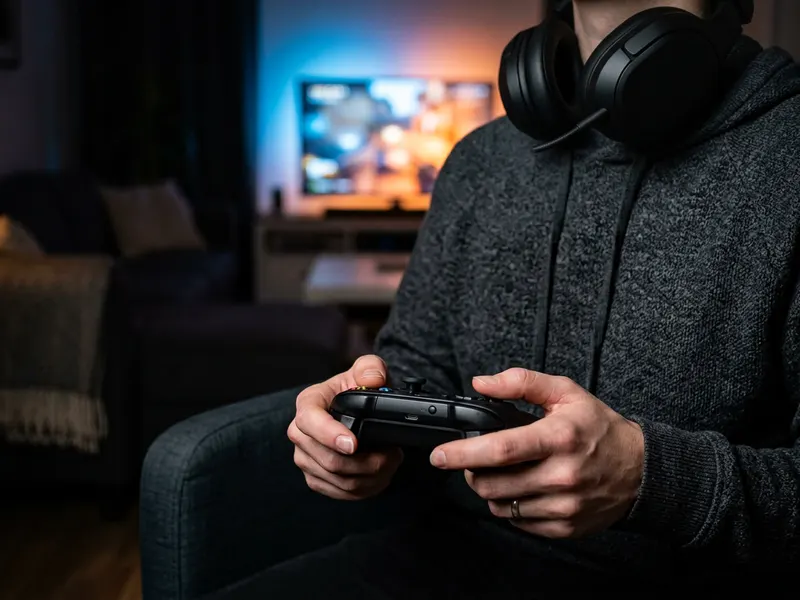 Turtle Beach Recon 50 Gaming Headset
A headset with its own mic, so your voice stays clear on the call.
-
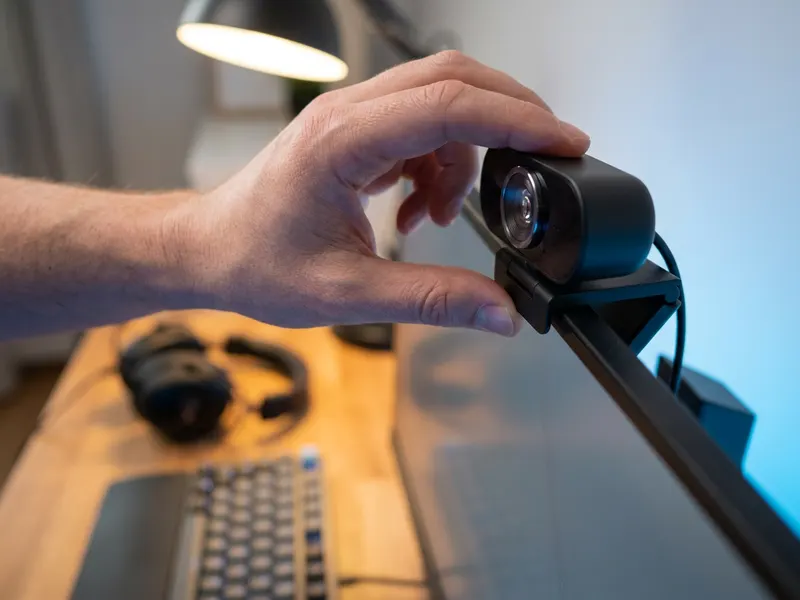 EMEET S600 4K Streaming Webcam
If your built-in camera looked grainy in the preview, this is a sharper upgrade.
-
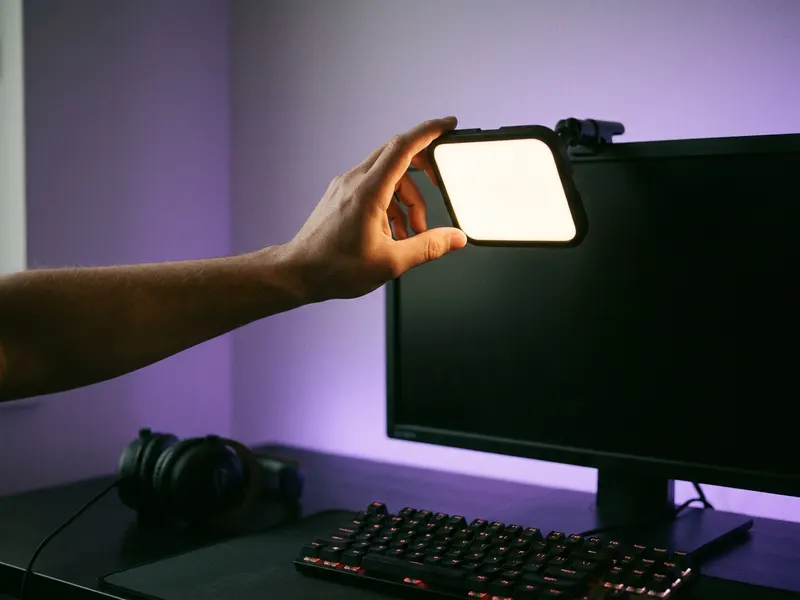 Logitech Litra Glow Streaming Light
Soft light on your face so you look clear and awake on camera.
Helps keep the tools free. ✨
Images are for illustration only. As an Amazon Associate I earn from qualifying purchases.


