Truncate Text Online by Characters or Words
Paste your text, set a limit and choose whether to count characters or words. The shortened version appears as you type, with a suffix such as ... marking the cut, ready to copy for a meta description, a database field, a text message or any preview with a hard length limit.
How to truncate text to a character or word limit
- Paste or type your text into Your text. A line under the box shows its current size, such as 152 characters · 27 words, and Clear empties the box. It takes up to 500,000 characters.
- Enter a number in Limit (it starts at 100) and pick Characters or Words under Count by.
- Read the cut text in Truncated text. It updates with every keystroke, and the line under it reads Result: N characters · M words. If nothing needed cutting it adds Already within the limit, so the text is unchanged.
- Select Copy. The button reads Copied for a moment.
- Open Advanced options to turn Keep whole words on or off or to change the Suffix.
Truncate to a character limit: the suffix counts inside it
With Characters selected, the limit is the length of the finished result, suffix included. A limit of 100 with the default ... keeps at most 97 characters of your text and adds the three dots, so the result is never longer than 100. Text that is already at or under the limit is returned untouched. Spaces and line breaks count as characters.
Here is how one 152-character sentence behaves at a limit of 60:
| Settings | Truncated text | Length |
|---|---|---|
Keep whole words on, suffix ... | Our new notebook keeps every note, sketch and checklist... | 58 |
Keep whole words off, suffix ... | Our new notebook keeps every note, sketch and checklist i... | 60 |
Keep whole words on, suffix … | Our new notebook keeps every note, sketch and checklist in… | 59 |
| Keep whole words on, empty suffix | Our new notebook keeps every note, sketch and checklist in | 58 |
If the limit is no longer than the suffix itself, only the suffix is shown, clipped to the limit, and a notice tells you so.
Keep whole words, or cut at the exact character
Keep whole words is on by default. When the cut would fall inside a word, that word is dropped and the suffix follows the last complete one, so you get checklist... instead of checklist i.... The trade-off is a result that can be a few characters under the limit. Turn it off when you need to use every character up to the limit, as in the second row above.
One case cannot keep whole words: a first word longer than the limit, such as a long URL. It is cut hard at the limit so you still get a result.
Truncate to a word limit
With Words selected, the tool keeps your text up to the last word you asked for and then adds the suffix. Line breaks and double spaces before that point stay exactly as typed, so a short passage keeps its paragraphs. Punctuation stays attached to its word: a limit of 10 on the sentence above gives Our new notebook keeps every note, sketch and checklist in... Because the suffix follows the last word, it does not count against the word limit. Keep whole words is greyed out here, since a word is never split in this mode.
Emoji, accents and text without spaces
Characters are counted the way you see them. An emoji, a flag and a letter with an accent each count as one character and are never cut in half, so Family trip 👨👩👧 to Kyoto, café stops 🇯🇵 included at a limit of 19 becomes Family trip 👨👩👧 to... Japanese, Chinese and Thai have no spaces between words, so in Words mode they are counted by word segments. Counts here can therefore differ from tools that count raw code units, which report a family emoji as several characters.
Frequently asked questions
How do I truncate text online?
Paste or type your text into the Your text box, enter a number in Limit and choose Characters or Words under Count by. The shortened text appears in the Truncated text box as you type, and Copy takes it with you. The cutting happens in your browser, so the text is never uploaded.
How do I truncate text to 100 characters?
Leave Limit at 100, which is the default, and keep Count by on Characters. With the default ... suffix the result is at most 100 characters in total, because the suffix counts inside the limit: up to 97 characters of your text plus the three dots. Text that is already 100 characters or shorter comes back unchanged, and the line under the result says so.
How do I limit text to a number of words?
Choose Words under Count by and set Limit to the number of words to keep, for example 50. The tool keeps your text up to the 50th word, with its line breaks and spacing exactly as typed, and then adds the suffix. In Words mode the suffix is added after the last word and does not use up any of the limit.
How do I truncate text without cutting words in half?
Keep the Keep whole words checkbox ticked in Advanced options, which is the default. When the cut would land inside a word, that word is dropped and the suffix follows the last complete word, so the result is a little shorter than the limit instead of ending mid-word. The one exception is a first word that is longer than the limit on its own, such as a long URL, which has to be cut hard. The checkbox is greyed out in Words mode, which never splits a word.
How do I truncate text with an ellipsis?
The default Suffix is three dots (...), so a shortened text already ends with an ellipsis. To use the single ellipsis character instead, paste it into the Suffix box in Advanced options. It counts as one character, so it leaves two more characters for your own text than three dots do. Clear the box to add nothing, and note that a suffix can be up to 10 characters long.
Is this the same as truncating text with CSS?
No. CSS text-overflow: ellipsis only hides the overflow on screen and the full text is still in the page. This tool actually cuts the text, so what you copy is the shorter version. That is what you need for a database field, a meta description, a text message or a preview that has a hard length limit.
Can I truncate text in Excel with this?
Yes, one cell at a time: paste the cell's text, set the Limit, copy the result and paste it back. For a whole column a formula is faster, for example =LEFT(A2,100) keeps the first 100 characters of every cell in column A. This tool is for a block of text you want to see and copy, not for a spreadsheet column.
What does truncate text mean?
To truncate text is to cut it off at a set length and drop the rest, usually marking the cut with a suffix such as ... so the reader knows something was left out.
What is the difference between truncate and trim?
Truncating shortens text to a length you choose, so real content is discarded. Trimming usually means removing spaces and line breaks from the start and end of text and leaves the words alone. This tool only truncates: the text it keeps stays exactly as you typed it, apart from a trailing space dropped before the suffix.
Does it cut emoji or accented letters in half?
No. An emoji, a flag or a letter with an accent counts as one character and is never split, so the end of the result never shows a broken symbol. A family emoji such as 👨👩👧 counts as one character even though it is stored as several. In Words mode, Japanese, Chinese and Thai, which are written without spaces, are counted by word segments.
Recommended
-
 Amazon Basics Foldable Laptop Stand
Lifts your screen to eye level for long stretches of trimming copy and filling in fields.
-
 Quntis Monitor Light Bar
A soft light across the desk for late-night edits of descriptions and previews.
-
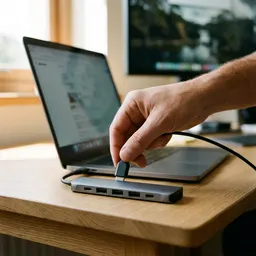 Anker 7-in-1 USB-C Hub
One hub for the card reader, HDMI and USB ports your laptop is missing.
Helps keep the tools free. ✨
Images are for illustration only. As an Amazon Associate I earn from qualifying purchases.


