Email Header Analyzer
Paste the raw headers of an email to see who really sent it, whether SPF, DKIM and DMARC passed, and the path it took from server to server. The tool reads what the receiving mail server already recorded in the headers, so it is a reading aid, not a verdict on whether a message is safe.
How to analyze email headers, step by step
- In your email app, open the message and choose Show original or View source, then copy the header block (everything above the blank line that precedes the message body).
- Paste it into Raw email headers (up to 200,000 characters). Clear empties the box.
- Press Parse headers. If nothing in the text looks like a header, you are told so and can paste again.
- Read the Results: subject and date, then the True sender, Authentication and Route cards. The back arrow returns to the pasted text; Start over clears everything.
What the True sender card tells you
Three addresses can differ, and the differences are the useful part. Return-Path is where bounces go and is set by the server that really sent the message. From is the name and address shown in your inbox. Reply-To is where your reply will go (and Sender appears when the message was sent on behalf of the From address). The card also shows the First public IP in the route.
Two notes can appear under them. “From and Return-Path are on the same domain” is the expected case. “From and Return-Path are on different domains” is a warning to look closer, but newsletter and mailing services do this legitimately. “Replies go to a different domain than the one in From” is worth a second look before you answer.
SPF, DKIM and DMARC results explained
The Authentication card shows each check as a badge, plus the recorded properties such as smtp.mailfrom, header.d and header.from. SPF asks whether the sending server was allowed to send for the domain, DKIM whether the message is signed and the signature checks out, and DMARC whether the domain’s own policy accepts the message.
| Badge | What it means |
|---|---|
| Pass | The receiving server ran the check and it succeeded. |
| Fail | The check failed: the server was not authorized, or the signature did not match. |
| Soft fail | SPF only: the server is probably not authorized, but the domain does not demand rejection. |
| Neutral | The domain makes no claim either way. |
| None | The domain published nothing to check against. |
| Temporary error, Permanent error | The server could not finish the check, for example because a DNS lookup timed out or the record is broken. |
| Policy | The result was decided by the receiving server’s own policy. |
| Unverified | A DKIM signature is present, but no server recorded a result for it. |
| Not found | The headers contain no result for that check. |
Results come from the topmost Authentication-Results header, including the Outlook style without a server id. If there is none, SPF falls back to Received-SPF and DKIM to the DKIM-Signature header.
Reading the email route (Received headers)
Every server that handled the message adds a Received line on top. The Route card reverses them so the oldest hop comes first, and for each hop shows the sending server (from), its IP addresses, the receiving server (by), the protocol, the time in UTC and how long it came after the previous hop. The summary line gives the number of servers and the total time in transit. A long delay between two hops shows where a message sat waiting, for example in a queue or a spam filter. Show raw values reveals the exact header text under each row.
What this analyzer cannot do
It does not verify signatures or look anything up in DNS. It reports the results the receiving mail server wrote into the headers. A forged message can arrive with fake Authentication-Results lines, so only the topmost one, added by your own provider, is trustworthy; lines from before your provider’s server were written by others and can be faked. It gives no guarantee that a message is safe or unsafe, and it does not look up where an IP address is located.
Your headers are read in your browser. Nothing is uploaded or saved. Truncated or malformed headers are handled without errors: folded lines and encoded names and subjects are decoded, and reading stops at the blank line before the message body.
Frequently asked questions
How do I read email headers?
Copy the full header block from the message, paste it into Raw email headers and press Parse headers. The Results screen puts the lines that matter in order: the True sender card (Return-Path, From, Reply-To), the Authentication card (SPF, DKIM, DMARC) and the Route card with every server the message passed through. Tick Show raw values to see the exact header text behind each row.
Where do I find the email headers in Gmail or Outlook?
In Gmail, open the message, use the three-dot menu and choose Show original, then copy the header block at the top. In Outlook, look for the message's properties or message details (File, then Properties, in classic Outlook; View, then View message details, in the new one). Menu names change between versions, and most other email apps have a similar View source or Show original option.
How can I see where an email really came from?
Check the Return-Path and the First public IP in the route on the True sender card. Return-Path is set by the server that actually sent the message, and the first public IP is the earliest outside address in the Received lines. Both can be a mail service rather than a person, and a forged message can fake the lines it carries from the start, so treat them as clues, not proof.
Can I find the sender's IP address from an email header?
Often you can see an IP, but not always the sender's own. The tool lists the IP addresses in each Received line and marks the first public one in the route. When someone sends through Gmail, Outlook or a newsletter service, that address belongs to the mail server, not to their phone or computer. The tool does not look up a location for an IP.
How do I tell if an email is spoofed?
Compare the identities and read the authentication results. A warning note appears when From and Return-Path are on different domains, or when replies go to a different domain than the one in From. Then look at SPF, DKIM and DMARC: Fail on DMARC for a message that claims to be from a bank or a person you know is a red flag. Different domains are normal for newsletters, so use the notes as prompts to look closer, not as a verdict.
What does SPF soft fail mean?
Soft fail means the sending domain's SPF record says the server that delivered the message is probably not authorized, but does not demand that it be rejected. Receiving servers often accept such mail and mark it, so a Soft fail is a warning, not proof of forgery. Fail is the stricter result, and Neutral means the domain makes no claim either way.
Why does a header show Unverified, None or Not found?
Unverified means a DKIM signature is present but no server recorded a result for it. None means the domain published nothing to check against. Not found means the headers contain no result for that check at all, which happens when the receiving server does not record one or when only part of the headers was pasted. Policy, Temporary error and Permanent error are results the server wrote itself.
Can I trust the Authentication-Results lines in a header?
Only the topmost one, which was added by your own mail provider, is trustworthy. Lines from earlier in the route were written by other servers and can be faked by whoever sent the message. This tool reads those lines as recorded; it does not check signatures or query DNS itself, so it reports what your provider already decided.
Is this email header analyzer free, and are my headers uploaded?
It is free and needs no account. The headers are read in your browser and are not uploaded or saved. Pasted text is limited to 200,000 characters, which is far more than a normal header block.
Recommended
-
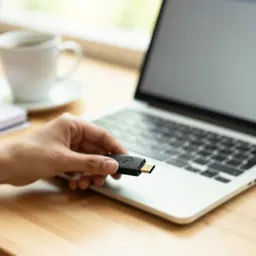 Yubico Security Key C NFC
Spotted a fake email? Lock your accounts with a physical key.
-
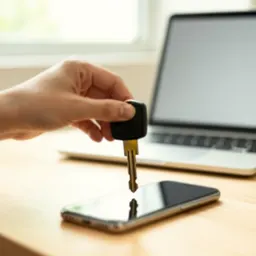 YubiKey 5C NFC
A multi-protocol key for admin and work logins, safe from phishing.
-
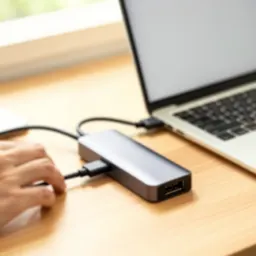 Belkin 4-Port USB-C Hub (100W)
More ports for the laptop you use to chase mail problems.
Helps keep the tools free. ✨
Images are for illustration only. As an Amazon Associate I earn from qualifying purchases.


