Copy Em Dash
Select the button above and an em dash (—) lands on your clipboard immediately — no selecting, no highlighting, no hunting through a symbol menu. Underneath the button, the exact keyboard shortcut for typing an em dash on your own operating system is shown too, so you can type it directly next time instead of coming back here.
What Is an Em Dash? (— vs. En Dash vs. Hyphen)
The em dash (—) is the longest of the three dash-like marks, roughly the width of a capital M, and it's used to set off a clause or mark a sudden break in a sentence — the way this one just did. The en dash (–) is shorter, about the width of an N, and is used for ranges like 9–5 or pages 12–14. The hyphen (-) is shortest of all and joins compound words like well-known. This tool copies the em dash specifically — the character above is the one that ends up on your clipboard.
Em Dash Keyboard Shortcuts by Operating System
Every major platform has its own built-in shortcut. On a Mac, hold Shift + Option + Minus. On Windows, hold Alt and type 0151 on the numeric keypad, then release Alt. On ChromeOS and most Linux desktops, hold Ctrl + Shift + U, type 2014, then press Space or Enter to confirm the Unicode code point. The app bar above detects which of these applies to you and shows it under the button, so you don't have to remember which one is yours.
How to Type an Em Dash Without a Numpad
The Windows Alt-code method only works with a physical numeric keypad — it reads input from the numpad specifically, not the number row along the top of the keyboard, which is why it fails on most laptops. If your keyboard has no numpad, skip the shortcut entirely: select the button above, and the em dash is on your clipboard ready to paste with Ctrl+V (or Cmd+V on a Mac) wherever you need it.
Em Dash Shortcuts in Word and Google Docs
Microsoft Word and Google Docs both fall back to your operating system's shortcut — there's
no separate app-specific combo to learn. Both also auto-correct two hyphens typed between
words (like this--see) into an em dash once you keep typing past them. If
autocorrect isn't cooperating, or you're pasting into a plain text field with autocorrect
disabled, the copy button above works the same everywhere.
When to Use an Em Dash
Reach for an em dash to insert a break in a sentence — for emphasis, an aside, or a sudden change in thought — in place of parentheses, a comma, or a colon. Two em dashes can also bracket a clause in the middle of a sentence, the way this sentence does. There's no space on either side in standard American style, though some publications and other languages do add one; either way, this tool always copies the plain em dash character, and spacing is yours to apply.
Frequently Asked Questions
How do I type an em dash on a Mac?
Hold Shift + Option + Minus (the hyphen key) and macOS inserts an em dash directly. It works in any app — Pages, Word, a browser text field — with no numpad required. If you'd rather skip the key combo entirely, select the button above and the em dash is already on your clipboard.
What is the em dash shortcut on Windows?
Hold Alt and type 0151 on the numeric keypad, then release Alt — Windows inserts an em dash wherever your cursor is. This only works with a physical numpad (a numeric keypad, not the number row), which is why it fails on most laptops. If your keyboard has no numpad, use the button above instead.
How do I type an em dash without a numpad?
The Alt-code method (Alt + 0151) needs a physical numeric keypad, so it doesn't work on most laptop keyboards. On a Mac, Shift + Option + Minus works with no numpad needed. On Windows or a Chromebook without a numpad, the simplest fix is the button above — it copies the em dash to your clipboard in one step, ready to paste anywhere.
What is the em dash shortcut in Google Docs?
Google Docs doesn't have its own em dash shortcut — it uses whatever your operating system provides (Shift + Option + Minus on a Mac, Alt + 0151 on Windows with a numpad). Google Docs also auto-converts two hyphens (--) between words into an em dash as you type. Copying the em dash from the button above and pasting it works in Google Docs too.
What's the difference between an em dash and an en dash?
An em dash (—) is roughly the width of the letter M and is used to set off a clause or mark an abrupt break in a sentence. An en dash (–) is shorter, about the width of the letter N, and is used mainly for ranges — like 9–5 or pages 12–14 — or to connect two related terms. This tool copies the longer em dash (—), not the en dash.
Why isn't my em dash shortcut working?
The most common cause on Windows is trying Alt + 0151 on a laptop with no physical numeric keypad — that shortcut only reads input from a real numpad, not the number row. On a Mac, the shortcut can fail if Option is remapped by another app or a keyboard layout other than U.S. English. Either way, the button above sidesteps the shortcut entirely by copying the em dash straight to your clipboard.
Recommended
-
 Dreyer's English (Benjamin Dreyer)
A copy chief's witty guide to punctuation, dashes very much included.
-
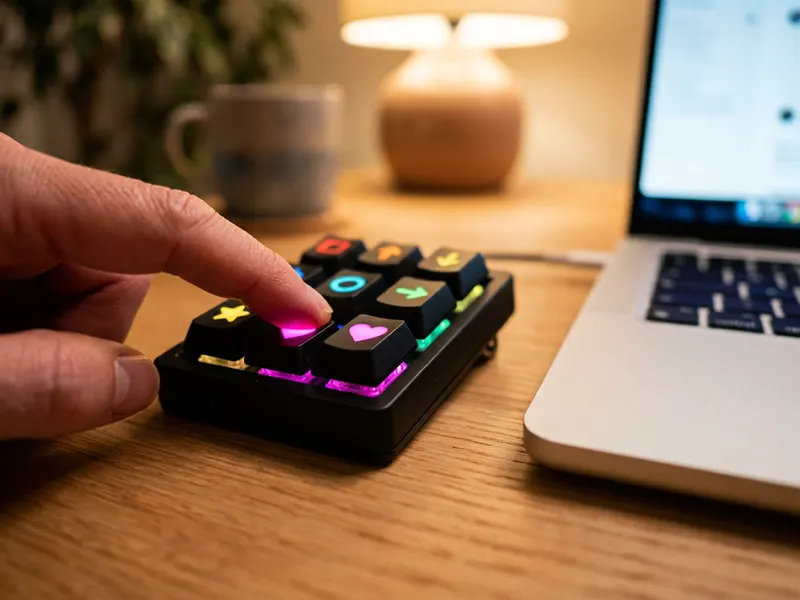 Elgato Stream Deck Neo (8 keys)
Set one key to type an em dash, or any symbol you reach for daily.
-
 The Chicago Manual of Style, 18th Edition
The editors' rulebook: exactly when to use an em dash, an en dash or a hyphen.
Helps keep the tools free. ✨
Images are for illustration only. As an Amazon Associate I earn from qualifying purchases.


