On-Screen Keyboard Online — Free, No Download
This free on-screen keyboard online lets you type and copy text by clicking or tapping a full QWERTY layout — no download, no account, and no browser extension. Click into the text box above, select out your message on the keys below, then select Copy to send it to your clipboard. It works the moment the page loads, in any modern browser.
When You Need an On-Screen Keyboard
The most common reason to reach for this tool is a single dead or sticky key — a spacebar that doesn't register, a letter that's popped off, or a laptop keyboard damaged by a spill. You can keep typing normally on every key that still works and use the on-screen keyboard just to fill in the ones that don't; both feed the same text box, so nothing has to be typed twice.
It also covers situations where there's no physical keyboard attached at all — a tablet in a kiosk stand, a shared or locked-down public computer, or a device connected to a monitor with only a mouse in hand — and any time you simply need to type using only a mouse or touchscreen.
How to Type With the On-Screen Keyboard
- Click or tap the keys below to build up your message in the text box above — letters, numbers, and punctuation insert at your cursor position, so you can click back into the middle of what you've written to fix a typo or add a missing word.
- Select Shift to capitalize the next letter or type the upper symbol on a number key (it resets automatically after one key), or Caps Lock to keep typing in capitals until you select it again.
- Backspace, Enter, and Space work exactly like their physical counterparts.
- When you're done, select Copy above the text box to copy everything to your clipboard, ready to paste anywhere else.
On-Screen Keyboard vs. Your Device's Built-In One
Windows, macOS, Chromebooks, and Android all ship a built-in on-screen keyboard, but each one is buried behind a different settings path — Ease of Access on Windows, the Accessibility Keyboard on Mac, an on-screen keyboard toggle in Chrome OS's accessibility settings, or Android's Gboard settings. This tool skips all of that: it's a page that's already open, so there's nothing to enable, no download, and no account, and it looks and works the same whichever device or operating system you're on.
The trade-off is scope: because it's a regular web page rather than a system input method, it types into this page's text box, not directly into other apps, browser address bars, or password prompts the way an OS-level on-screen keyboard can. For composing a message, an email, or anything else you can copy and paste, that's rarely a limitation.
Frequently Asked Questions
How do I type when my keyboard is not working?
Click into the composed-text box above, then tap the on-screen keys with your mouse or touchscreen to build up your message. If only a few physical keys are broken, you can also type normally on your working keys and use the on-screen keyboard just for the dead ones — both feed the same text box, so you can mix the two freely.
How do I get an on-screen keyboard without downloading anything?
This page is the on-screen keyboard — there's nothing to install. It runs entirely in your browser, so it works the moment the page loads on a phone, tablet, or desktop, and nothing you type is uploaded or saved anywhere.
Can I use an on-screen keyboard on a Chromebook?
Yes. Since it's a regular web page rather than an installed app, it works the same way in Chrome on a Chromebook as it does on Windows, Mac, iPad, or Android — no settings menu to dig through and no accessibility feature to enable first.
How do I type using only a mouse?
Click each on-screen key in order the same way you'd click any button — letters, Space, and punctuation all respond to a plain click. Shift and Caps Lock toggle uppercase and symbols, and Backspace and Enter behave exactly like their physical counterparts, so a full message can be composed with the mouse alone.
Does this work instead of the built-in on-screen keyboard on Windows or Mac?
For typing text into this page — or into anything you paste it into afterward — yes, and it needs no setup: no Ease of Access settings on Windows, no Accessibility Keyboard toggle on Mac, just a page that's already open. It's not a system-level input method, so it can't type directly into other apps or password prompts the way the OS's built-in one can.
Recommended
-
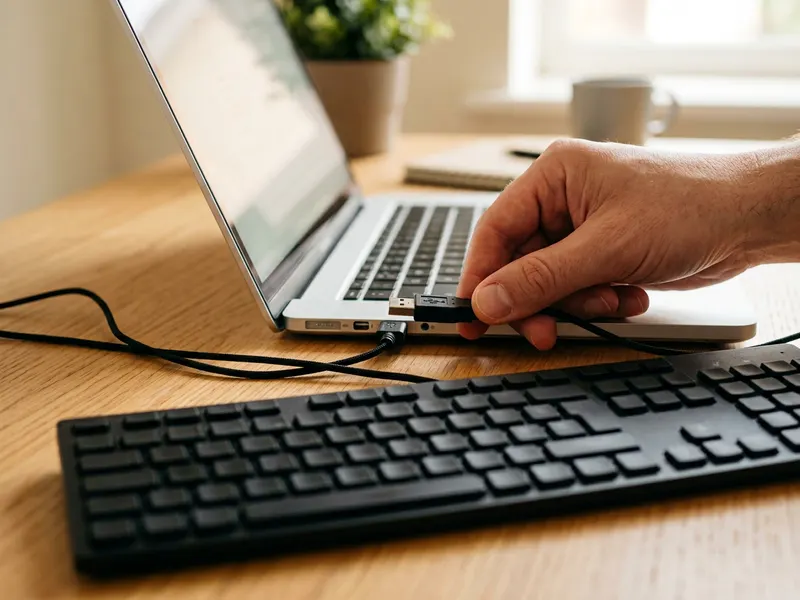 Logitech K120 USB Keyboard
Dead laptop keys? Plug this in and type normally again in seconds.
-
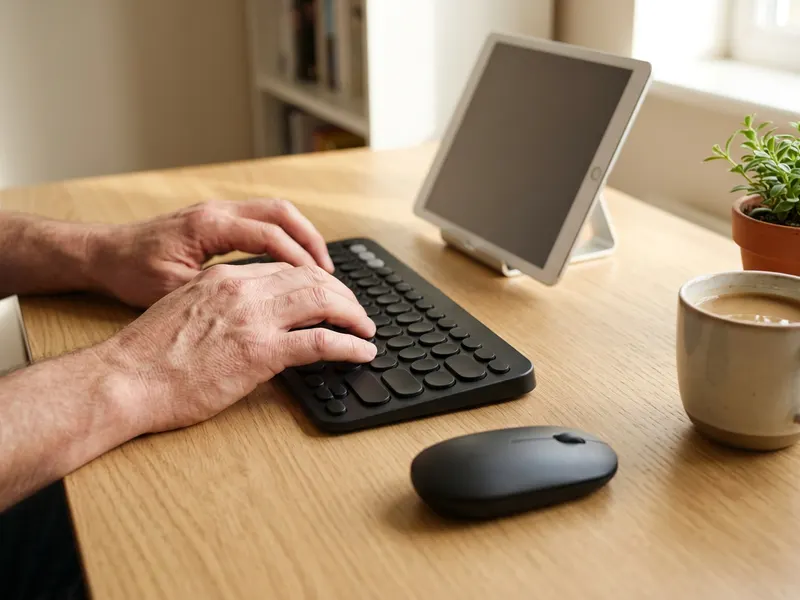 Logitech Pebble 2 Keyboard and Mouse Combo
A quiet, slim wireless pair for your laptop, tablet or phone.
-
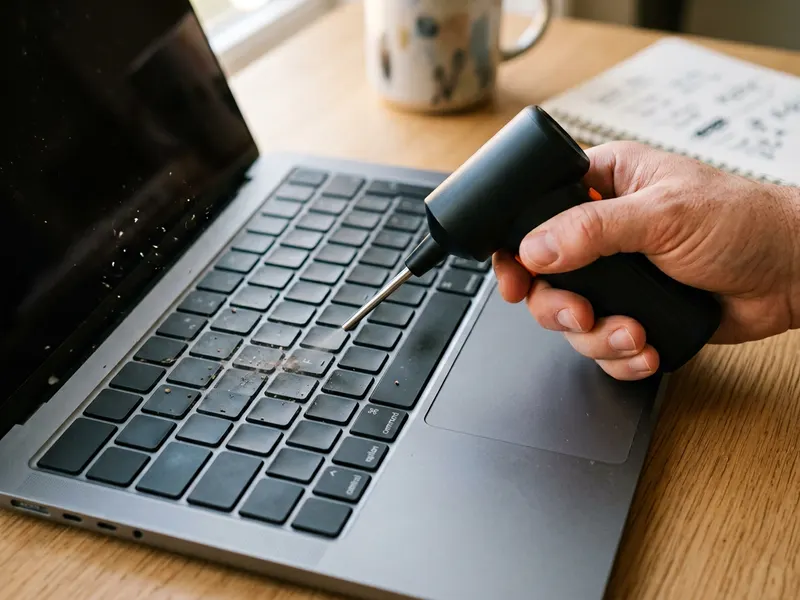 WOLFBOX MegaFlow 50 Electric Air Duster
Blow out the crumbs and dust that make keys stick, no cans to buy.
Helps keep the tools free. ✨
Images are for illustration only. As an Amazon Associate I earn from qualifying purchases.


