Mouse Jiggler Phone Screen
This is a mouse jiggler phone screen trick: place a physical optical mouse on top of the moving pattern above, and its sensor reads the shifting black-and-white bars as real movement — no download, no app, no USB jiggler hardware to buy. It keeps a Windows PC or Mac awake and your Teams, Zoom, or Slack status off "Away," entirely by showing your screen a pattern an optical sensor can't tell apart from a moving desk.
How the Phone Screen Mouse Jiggler Trick Works
An optical mouse doesn't roll a ball anymore — it photographs the surface underneath it thousands of times a second and calculates movement from how that image shifts between frames. It has no idea whether that surface is a desk, a mousepad, or a screen. Rest the mouse lens-down on a phone or laptop screen that's showing a constantly shifting high-contrast pattern, and the sensor reports the same kind of movement it would report sliding across a desk — which is all a "mouse jiggler" ever needs to do.
The pattern above alternates pure black (#000000) and pure white
(#ffffff) rather than any softer contrast, because that's the strongest signal
an optical sensor can read. The Screen Wake Lock this page requests also keeps the display
itself from dimming or locking, so the pattern stays visible for the mouse to see.
How to Use This Mouse Jiggler (No Download, No App)
- Select Start jiggling. Your browser will ask to enter full-screen — allow it, since a partial screen or a locked device stops the animation from being visible.
- Set the phone or laptop flat, then rest the optical mouse directly on the screen, lens side down, over the moving pattern.
- Leave both running for as long as you need your computer or chat status to stay active. Click anywhere on the pattern to stop and return to this page.
If the sensor doesn't seem to register movement right away, try tilting the screen a few degrees, or switch the pattern in Advanced Settings — some sensors focus better at a slight angle, and a different pattern can register more reliably than another on a particular mouse.
Choosing a Pattern — Lines, Grid, or Static Noise
Scrolling Lines is the default and works for most sensors — thick bars sweeping in one direction give a clean, consistent signal. Grid shifts contrast on two axes at once instead of one, which some sensors track more confidently than straight lines. Static Noise repaints the whole screen with random black-and-white pixels every frame — the most aggressive option, useful for an older or more conservative sensor that the other two patterns don't register with. The Pattern Speed slider controls how fast the pattern moves; a stubborn sensor sometimes wakes up at a different speed than the default.
Does This Mouse Jiggler Work on Teams, Zoom, or Slack?
Yes, on all three, for the same underlying reason. Teams, Zoom, and Slack each mark you "Away" or idle after a stretch with no keyboard or mouse input — and none of them can tell the difference between a mouse moved by your hand and one reporting movement because its sensor sits on a moving screen. As far as the operating system and every one of these apps is concerned, a genuine hardware input event just occurred, which is exactly what lets you keep your Microsoft Teams status always active through a long call or a quiet afternoon.
Is This Mouse Jiggler Safe?
This page itself is as safe as any static web page: it's a canvas animation running in your browser tab, with nothing to install, no extension, and no access to your files or the rest of your system — closing the tab ends it completely. Whether keeping your status active is appropriate for your workplace is a policy question, not a technical one.
Frequently Asked Questions
Does a mouse jiggler work on Microsoft Teams?
Yes. Teams marks you Away after a period with no keyboard or mouse activity, and this trick produces real hardware mouse-movement events exactly like a physical jiggler would — Teams can't tell the difference between that and you actually moving the mouse. Keep the pattern running and the mouse on the screen for as long as you want your status to stay Active.
Does a mouse jiggler work on Zoom or Slack?
Yes, for the same reason it works on Teams — Zoom's and Slack's idle/away detection both watch for the same OS-level input events a real mouse movement generates. Since the optical sensor is reporting genuine movement, any app that only checks for mouse or keyboard activity treats it identically to normal use.
Is a mouse jiggler safe to use?
This tool is safe in the sense that matters technically: it's a browser tab drawing a canvas animation, with no download, no extension, and no access to your files or system. It doesn't install anything or run in the background after you close the tab. Whether jiggling your status is appropriate is a separate, workplace-policy question this page can't answer for you.
How does a mouse jiggler work?
An optical mouse works by photographing the surface underneath it thousands of times a second and measuring how that image shifts between frames. A physical jiggler either moves the mouse a tiny amount or spoofs movement over USB. This tool takes a third route: it puts a constantly shifting pattern on a screen, and when the mouse sits on top of that screen, its sensor reads the same kind of shifting image it would see moving over a desk.
Does a mouse jiggler work on Mac?
Yes — this trick works on any computer with an optical mouse plugged in, macOS included. It's not software running on the Mac at all; the Mac just sees a standard mouse reporting movement, the same as if your hand had moved it. Trackpads and laser mice, however, don't use the visible-light sensor this relies on.
Recommended
-
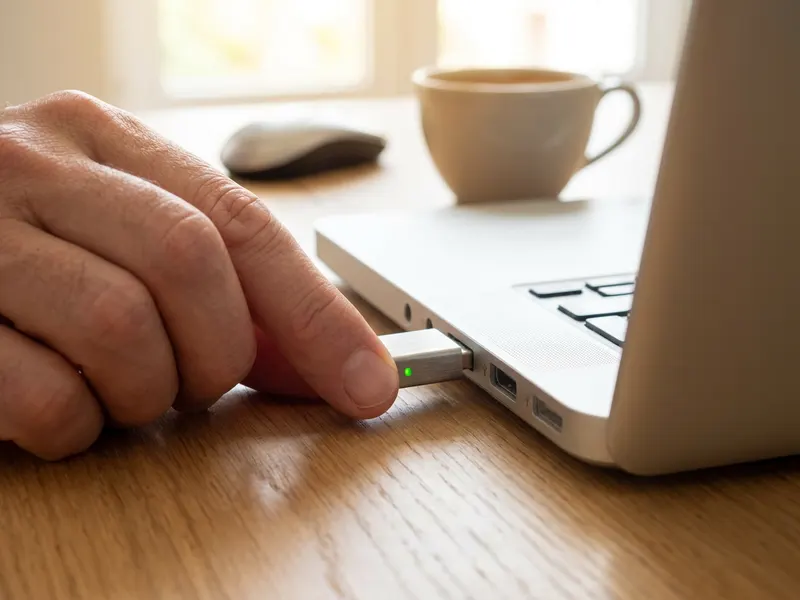 Tiny USB Mouse Jiggler
Plug it in and your computer stays awake, with your phone free.
-
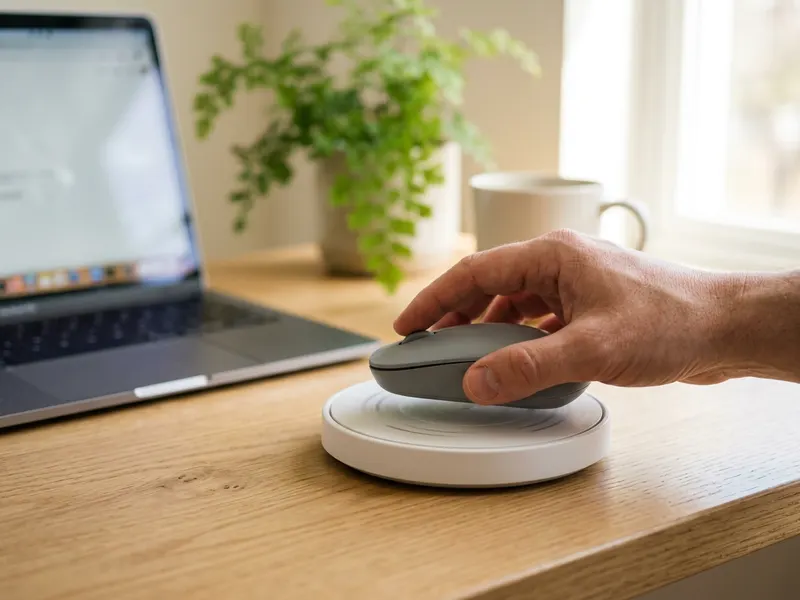 TECH8 Dual Disc Mouse Mover
Set your real mouse on it: it moves on its own, no USB, no software.
-
 COMEXION Wireless Headset with Mute Mic
For when the green status brings a call: clear mic, one-tap mute.
Helps keep the tools free. ✨
Images are for illustration only. As an Amazon Associate I earn from qualifying purchases.


