Image to Text Converter Online Free
This image to text converter reads the words in a photo, a screenshot or a scanned page and hands them back as text you can edit and copy. Choose a picture, drop it on the box or paste it, and the reader works through it in your browser. Nothing is uploaded, there is no sign-up, and it reads 29 languages. It does the job of a photo to text app on any computer or phone that has a browser.
How to Convert an Image to Text
- On the Extract text from a photo or screenshot screen, choose Choose an image, drop it here, or paste it, drop a file on it, or press Ctrl+V (Cmd+V on a Mac) anywhere on the page to paste an image from your clipboard.
- If the writing is not in English, press Options first and pick the language under Language of the text in the image.
- Wait while the screen shows Starting the text reader… and then Reading the text… with a percentage and a progress bar. Press Cancel to stop and go back.
- Check the text. The result screen shows a count such as 17 words above an editable box. You can edit the text before you copy it, so fix any misread letters there.
- Press Copy to clipboard. The button turns into Copied ✓ and the text is ready to paste.
- Press Start over to read another image.
Most images take a few seconds. The first one takes a little longer because the text reader and the language data download once, and your browser keeps them for next time.
Total due: 128.50 by March 14
Thank you for your business!
Result screen: 17 words
Extract Text from a Screenshot or a Photo
The same box takes both. For a screenshot to text job, copy the screenshot to the clipboard and paste it with Ctrl+V (Cmd+V on a Mac), so there is no file to save first. On Windows, Win+Shift+S copies a selected area. On a Mac, Shift+Command+Control+4 does the same. Small screenshots are enlarged inside the reader before it reads them, which helps it pick out small interface text.
For a photo, choose a file from your computer or photo library. On a phone or tablet there is also a Take a photo button that opens the camera, so you can photograph a page, a sign or a label and get the text without leaving the page. The box accepts PNG, JPG, WebP, BMP and GIF, plus HEIC/HEIF photos from an iPhone and camera RAW files such as DNG, which are converted on the way in. Very large pictures are scaled down to about 10 megapixels before reading.
Pick the Language of the Text
The reader works on one language at a time, and it needs to know which. Under Options, the Language of the text in the image menu offers Arabic, Chinese (Simplified and Traditional), Czech, Danish, Dutch, English, Finnish, French, German, Greek, Hebrew, Hindi, Hungarian, Indonesian, Italian, Japanese, Korean, Norwegian, Polish, Portuguese, Romanian, Russian, Spanish, Swedish, Thai, Turkish, Ukrainian and Vietnamese. It starts on English on this page. Change it before you read a Japanese menu or a German form, or the result will be gibberish. If the picture mixes languages, pick the main one.
How to Get a Cleaner Read
The quality of the text depends on the picture. Printed text in a plain font reads best, and a few habits make a clear difference.
| Reads well | Reads poorly |
|---|---|
| Sharp, in-focus text | Blurry or shaky photos |
| Even light, dark text on a light background | Shadows, glare, low contrast |
| Straight, horizontal lines | Tilted, curved or upside-down pages |
| Plain printed fonts and screenshots | Handwriting, script and decorative fonts |
| The text filling most of the picture | A few small words in a large scene |
If a result looks wrong, retake the photo closer and square-on, or crop the screenshot to just the part you want, then press Start over and read it again. If the screen says No text found, check the language under Options and press Try another image.
This is a plain text reader. It does not keep tables, columns, fonts or layout, and it does not make a Word, PDF or .txt file. Copy the text and paste it into the document where you want it.
Your Image Stays on Your Device
The text is read by the open-source Tesseract engine, running as WebAssembly in a background worker inside your browser tab. The image is drawn in your browser and never sent to a server, so a screenshot of a bank page or a photo of an ID stays with you. Only the reader code and the language data are downloaded, and they come to you, not the other way round. Because no server does the work, there is no account, no email box and no cap on how many images you read.
Scanned Documents and PDFs
For a multi-page scan saved as a PDF, use Scanned PDF to Text, which runs the same kind of reading on every page. If the PDF already has selectable text, PDF Text Extractor pulls it out directly and needs no reading at all.
Frequently Asked Questions
How do I extract text from an image?
Choose the image, drop it on the box, or paste it with Ctrl+V (Cmd+V on a Mac), then wait a few seconds while the progress bar runs. The words appear in an editable text box with a word count. Fix any misread letters, then press Copy to clipboard. The image is read in your browser, so nothing is uploaded.
How do I copy text from a photo on iPhone or Android?
Open this page in your phone's browser and press Take a photo to use the camera, or choose a picture from your photo library. The text appears in a box you can edit, and Copy to clipboard puts it on the clipboard so you can paste it into Notes, a message or a document. If your phone's photo app already lets you select text in a picture, that is quicker; this is for pictures it cannot read, or when you are on a computer.
How do I copy text from a screenshot on Windows or Mac?
Take the screenshot to the clipboard, then press Ctrl+V (Cmd+V on a Mac) anywhere on this page. On Windows, Win+Shift+S copies a selected area to the clipboard. On a Mac, Shift+Command+Control+4 does the same. The pasted screenshot is read straight away, with no file to save and upload first.
Is there a free image to text converter with no sign up?
Yes. There is no account, no email box and no limit on how many images you convert. The text reader runs inside your browser rather than on a server, so your image is never uploaded. The first image takes a little longer because the reader and the language data download once, and after that your browser keeps them.
Can I convert an image to text in Japanese, Chinese or another language?
Yes. Press Options, then choose the language under Language of the text in the image. There are 29, including Japanese, Korean, Chinese (Simplified and Traditional), Arabic, Hindi, Thai, Russian and the main European languages. Choose the language the text is written in before you read, because a wrong choice gives gibberish. The list starts on English on this page, and each read uses one language.
Can it read handwriting?
Not reliably. The reader is built for printed text, so neat, evenly spaced block capitals sometimes come out well while cursive and rushed handwriting usually reads badly. Photos of books, receipts, signs, slides and screenshots of web pages and apps are what it handles best.
Can I turn an image into text for Word?
Yes, by copying and pasting. Press Copy to clipboard and paste into Word, Google Docs or any other editor. The result is plain text only. It does not create a Word or PDF file, a .txt download, or keep columns, tables and fonts, so reformat in your editor if the layout matters.
Why does it say No text found?
The reader found no letters or digits. The usual causes are a picture with no writing in it, text that is too small or blurry, or the wrong language. Press Options and choose the language of the text, then press Try another image. A sharper, closer, well-lit photo helps most.
Recommended
-
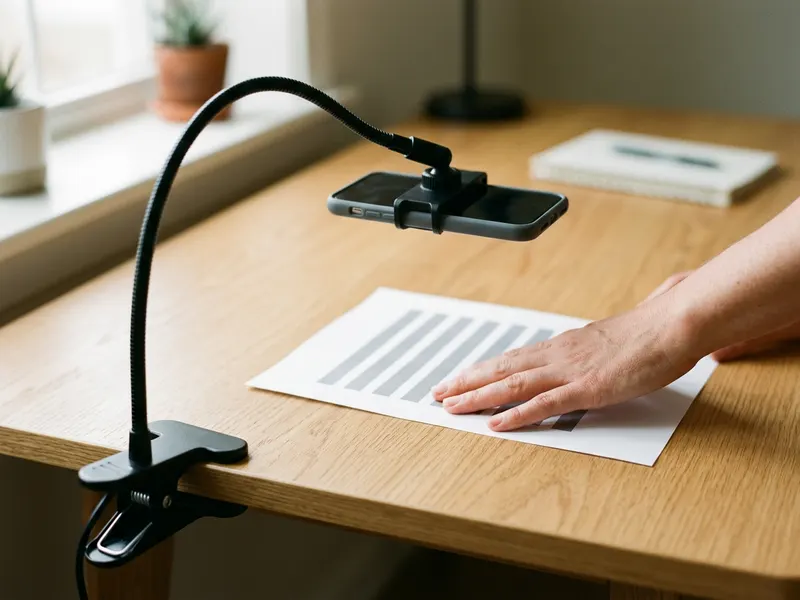 MAGIPEA Gooseneck Phone Holder
Hold your phone steady over a page for a sharp shot, so the text reads cleanly.
-
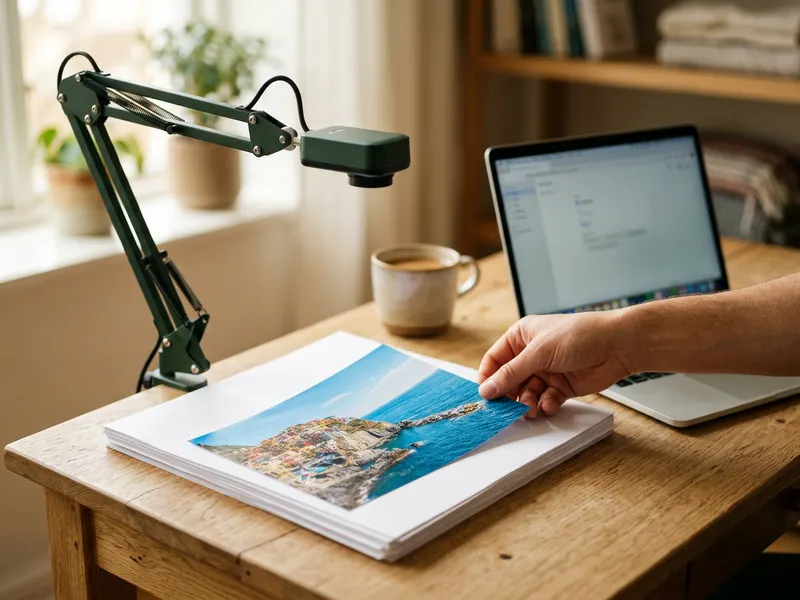 IPEVO V4K Document Camera
Snap a whole page flat and sharp from above, no more skewed or shadowed photos.
-
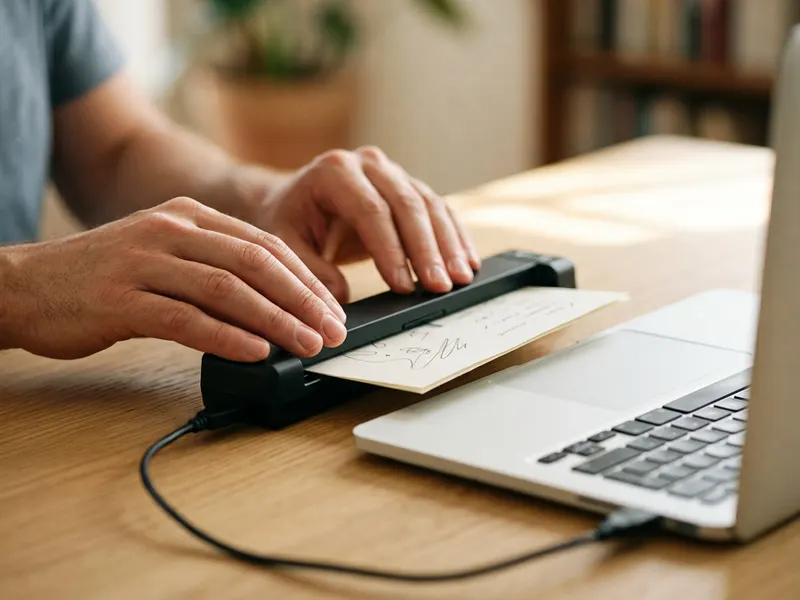 Epson DS-70 Portable Document Scanner
Scan receipts and pages straight to clean images, ready to pull the text from.
Helps keep the tools free. ✨
Images are for illustration only. As an Amazon Associate I earn from qualifying purchases.


