Print Multiple Photos on One Page: 2 to 16 per Sheet on A4 or Letter
Add up to 36 photos and the tool lays them out in an even grid on a sheet of A4 or US Letter paper, with a live preview of exactly what will print. Choose how many photos go on each page, from 2 to 16, then select Print. It uses the browser's own print dialog, so there is no PDF to make and no layout software to open.
How to print multiple photos on one page
- Select Choose photos or drop them here, or drag photos onto it. JPG, PNG, WebP, HEIC and RAW files all work, up to 36 photos at once.
- Check the preview. It is a sheet of paper with your photos laid out on it. Until you touch the slider, the tool picks the smallest grid that fits all your photos on one sheet.
- Drag Photos per page to change the grid. The label under it reads, for example, 4 per page (2 × 2).
- To change the paper, the photo shape or the gaps, select Options (the gear).
- Select Print. The print dialog opens with only the photo sheets in it. Ctrl+P prints the same thing.
Photos per page: 2, 4, 6, 8, 9, 12 or 16
The slider has seven steps. The grid is written as columns × rows on a portrait sheet, so 2 × 3 means two photos across and three down.
| Photos per page | Grid | Good for |
|---|---|---|
| 2 | 1 × 2 | Two large photos, one above the other |
| 4 | 2 × 2 | Four medium prints on one sheet |
| 6 | 2 × 3 | Six photos for a small album or gift |
| 8 | 2 × 4 | Eight smaller photos in two columns |
| 9 | 3 × 3 | A square nine-photo grid |
| 12 | 3 × 4 | A quick proof sheet of a shoot |
| 16 | 4 × 4 | The smallest prints, a contact-sheet style overview |
The tool picks the starting step for you: one or two photos start at 2 per page, five photos at 6 per page, nine at 9 per page, and anything over sixteen at 16 per page. Moving the slider overrides that choice.
More photos than fit: several sheets
If you add more photos than one sheet holds, the rest continue onto more sheets. Arrows under the preview move between them, and the label reads Sheet 1 of 3. A line below shows the totals, such as 20 photos · 2 sheets. Thirty-six photos at 16 per page make three sheets, and the last one is partly empty. Print sends every sheet to the printer in one go.
Fit or Fill: whole photos or filled cells
Under Options, Photo fit decides what happens when a photo's shape differs from its cell.
- Fit: whole photo, nothing cut off. Some empty space may remain beside or above the photo.
- Fill: cells filled, edges cropped. There are no empty bands, but the edges of the photo are trimmed.
Use Fit when every part of the picture matters, and Fill for a neat, tight grid of similar photos.
Paper size and space between photos
- Paper size: A4 or US Letter. It starts from your region, so you usually do not need to change it.
- Space between photos: None, Small, Medium or Large, which are 0, 3, 6 and 10 mm. The outer margin follows the gap but never goes below 5 mm, because most printers cannot print right to the edge of the paper.
Print settings that keep the sheet the right size
The tool gives this reminder under Print: In the print dialog, set the scale to 100% and turn off headers and footers. The browser, not the tool, controls those two settings. A scale such as "Fit to page" shrinks the sheet, and headers and footers can print a date and web address on the sheet. Make sure the paper size in the print dialog matches the one under Options, and pick photo paper in your printer settings if you want a photo finish.
Remove or add photos
Your photos appear as thumbnails under Your photos. Select the x on a thumbnail to remove that photo, or select Add more photos to add others, up to the 36-photo limit. The sheets follow the order you added the photos in, and the tool has no reordering. A file that is not a readable photo is skipped, and a note tells you how many.
What this tool does not do
- No captions, borders or text on the sheet, and no per-photo size, rotation or position choices. Every photo takes one equal cell.
- No PDF file. It prints through the browser's print dialog.
- No uploads. Your photos are read in your browser and never sent to a server.
Frequently asked questions
How do I print multiple photos on one page?
Select Choose photos or drop them here and add up to 36 photos. The preview shows a sheet of paper with your photos on it. Use the Photos per page slider to pick how many fit on each sheet, then select Print. The print dialog opens with only the photo sheets in it.
How do I print 4 photos on one page?
Add your photos and move the Photos per page slider to 4 per page (2 × 2). That puts two photos across and two down, so each sheet holds four. With exactly four photos the tool already starts there, because it picks the smallest step that fits them all on one sheet.
Can I print multiple photos on one page online for free?
Yes. Photo Grid Printer runs in your browser, needs no account and makes no PDF or download. Your photos are only shown and printed from your own device, so nothing is uploaded.
How do I print 2 photos on one page?
Move Photos per page to 2 per page (1 × 2). Each sheet then holds one photo above the other. If you add only one or two photos, the tool starts at this setting by itself.
How do I print 9 or 16 photos on one page?
Drag Photos per page to 9 per page (3 × 3) or 16 per page (4 × 4). The available steps are 2, 4, 6, 8, 9, 12 and 16. If you add more photos than the sheet holds, the rest go onto extra sheets, which you page through under the preview as Sheet 1 of 2, Sheet 2 of 2 and so on.
Can I print multiple photos on one page without installing software?
Yes. It runs in the browser, so there is nothing to install on Windows, Mac or Chromebook, and printing goes through the browser's own print dialog. The only thing you need is a printer your device can print to.
Why are my photos cut off, or why is there empty space around them?
That is the Photo fit option, under Options. Fit shows the whole photo with nothing cut off, which can leave empty space when the photo's shape differs from its cell. Fill fills each cell and crops the edges. Switch between them and the preview changes at once.
Can I choose the order of the photos?
No. Sheets follow the order in which you added the photos. To change the order, remove a photo with the x on its thumbnail under Your photos and add it again with Add more photos, which puts it at the end.
Can I set an exact photo size, like 4×6 or passport size?
No. There are no per-photo size choices. Each photo takes one cell of the grid, and the cell size comes from the paper size, the Photos per page step and Space between photos. Pick the step that gives the size you want and check it in the preview.
What should I set in the print dialog?
Set the scale to 100% and turn off headers and footers. A scale other than 100%, such as Fit to page, shrinks the sheet, and headers and footers add text and margins to the page. Choose the same paper size in the dialog as under Paper size.
Does it make a PDF of the photo sheet?
No, the tool does not create a PDF. Print opens the browser's print dialog, and Ctrl+P prints the same sheets. Many browsers list a Save as PDF printer in that dialog if you want a file.
Are my photos uploaded anywhere?
No. Your photos are read and laid out in your browser and are never sent to a server. They are cleared when you close or reload the page.
Recommended
-
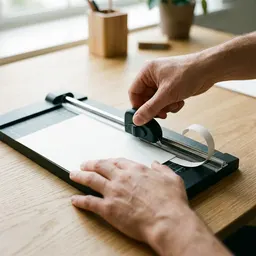 Fiskars SureCut 12" Paper Trimmer
Cut your printed sheet into neat, straight-edged photos in seconds.
-
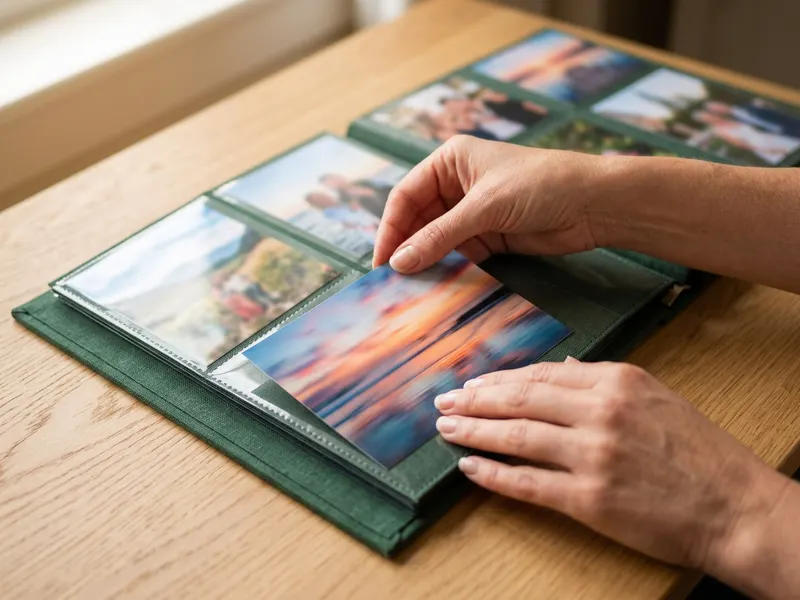 Artmag 4x6 Photo Album (300 photos)
Slip the finished prints into an album for a gift or a keepsake.
-
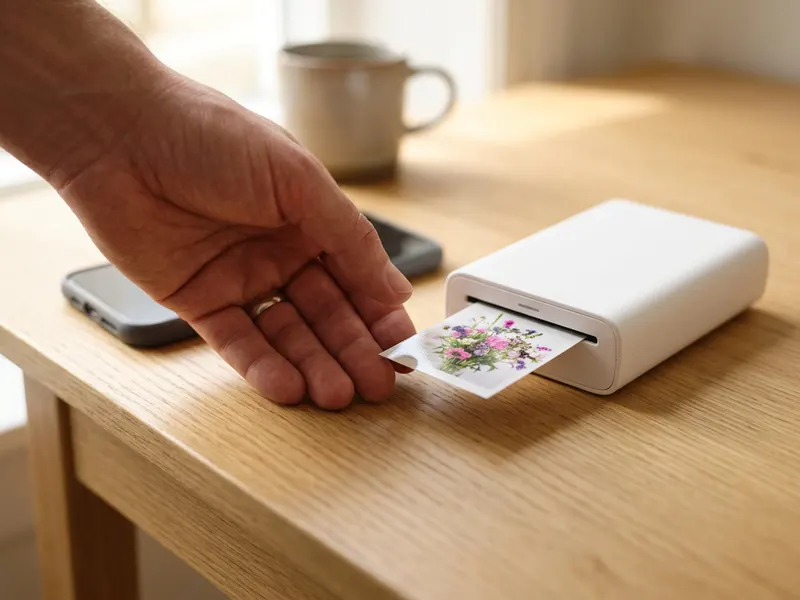 Canon Ivy 2 Mini Photo Printer
Add a few extra favourites from your phone as peel-and-stick mini photos.
Helps keep the tools free. ✨
Images are for illustration only. As an Amazon Associate I earn from qualifying purchases.


